

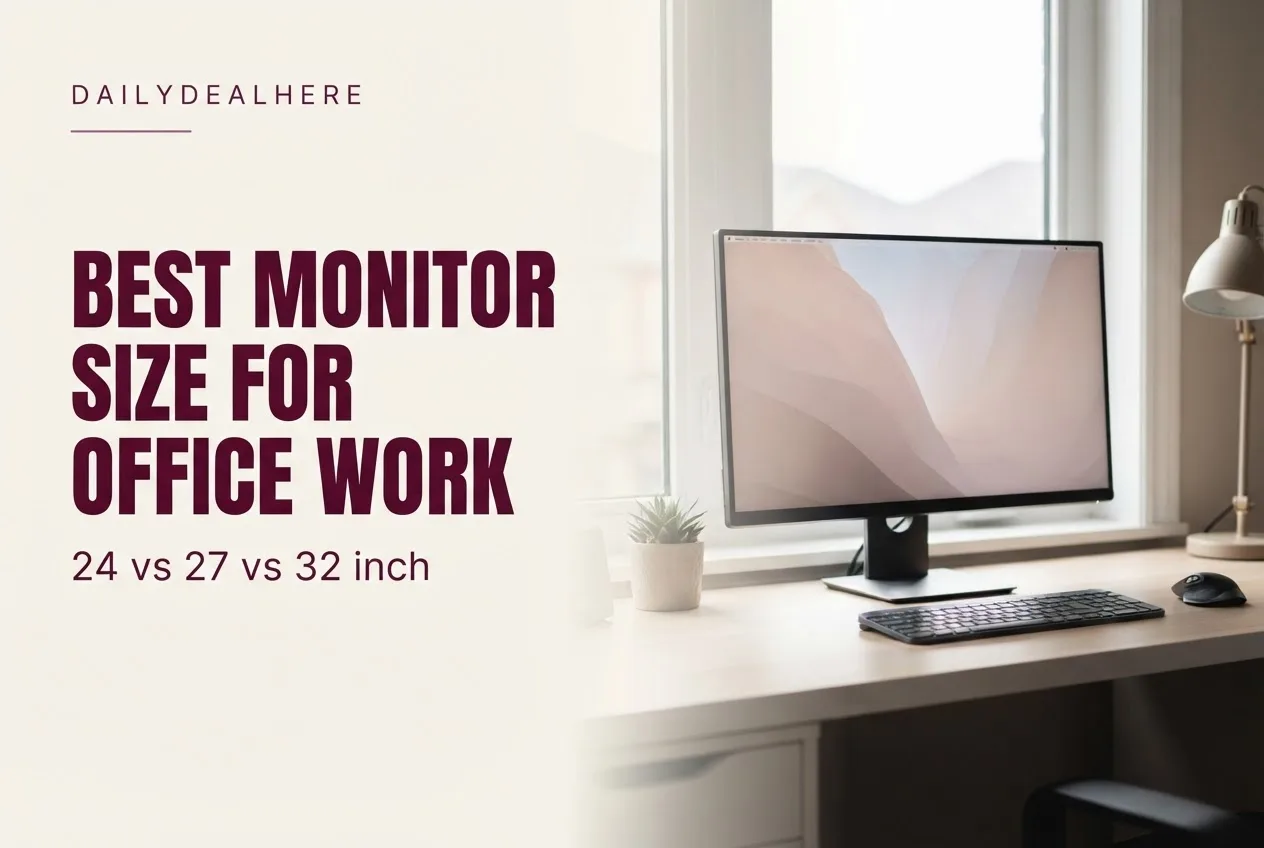
For most office work, a 27 inch monitor is the best all around size, especially at 1440p or 4K resolution. It gives noticeably more room than a 24 inch screen for side by side documents while still fitting comfortably within your field of view at about an arm’s length, the distance ergonomics guidance recommends. A 24 inch monitor is still a good fit for small desks or a dual screen setup, and a 32 inch monitor works well if you can sit a little farther back, but at typical desk distances its height starts to push beyond the most comfortable viewing zone. Resolution matters as much as size: a large screen with too few pixels looks soft and gains you less usable space than you expect.
This guide works through the geometry behind that answer, how size and resolution interact, where to position the screen, when two monitors beat one big one, and how to choose for spreadsheets, writing, design and video calls. Ergonomic guidance comes from the Canadian Centre for Occupational Health and Safety fact sheet on monitor positioning and Cornell University’s computer workstation ergonomics guidelines. The screen dimensions, pixel densities and viewing angles in the tables are our own calculations from standard aspect ratios.
The short answer
- Best for most office work: 27 inch at 1440p or 4K.
- Best for small desks and dual setups: 24 inch at 1080p or 1440p.
- Best if you sit farther back or want one very large canvas: 32 inch at 4K.
- Best single screen for wide spreadsheets and timelines: a 34 inch ultrawide at 3440 by 1440.
- Viewing distance: about an arm’s length, according to both CCOHS and Cornell.
- Height: top of the screen at or slightly below eye level, so you look slightly down at the center.
Why size depends on how far away you sit
A monitor size only makes sense relative to your viewing distance. CCOHS explains that an arm’s length is usually a good estimate of how far away the monitor should be, with adjustments for the individual. Cornell gives a practical version: sit back in your chair, raise your arm, and your fingertips should touch the screen. At that distance, Cornell says, you should be able to see the viewing area without moving your head.
That last point is the key to sizing. A monitor that is too large for your distance forces you to turn your head to read the edges. CCOHS notes that with a wide monitor you should consider how much it makes you rotate your neck, and that it may be necessary to move the monitor farther away. So the best monitor size is the largest one you can see comfortably without head movement at a distance that still lets you read text easily.
The geometry: how big each size really is
Screen sizes are measured diagonally, which hides how much bigger each step up is. The table below shows the actual width and height of common office monitor sizes, and the horizontal angle each one fills at a viewing distance of 28 inches, a typical arm’s length at a desk.
| Size and shape | Width | Height | Screen area | Horizontal angle at 28 in | Vertical angle at 28 in |
|---|---|---|---|---|---|
| 24 inch, 16:9 | 20.9 in | 11.8 in | 246 sq in | about 41 degrees | about 24 degrees |
| 27 inch, 16:9 | 23.5 in | 13.2 in | 312 sq in | about 46 degrees | about 27 degrees |
| 32 inch, 16:9 | 27.9 in | 15.7 in | 438 sq in | about 53 degrees | about 31 degrees |
| 34 inch ultrawide, 21:9 | 31.3 in | 13.4 in | 419 sq in | about 58 degrees | about 27 degrees |
Two things stand out. First, a 27 inch screen has about 27 percent more area than a 24 inch, and a 32 inch has about 40 percent more than a 27 inch. Second, the vertical angle of a 32 inch screen at a normal desk distance slightly exceeds the 30 degree preferred visual zone CCOHS describes, which is why a 32 inch monitor often feels best when pushed a little farther back.
What the ergonomics guidance says about viewing angle
CCOHS explains that at rest the eyes naturally look straight ahead and slightly down, and that people doing visually demanding work limit downward eye movement to about half of the available range. It suggests placing the monitor so its center is about 15 degrees below horizontal, which creates a preferred visual zone of 30 degrees, from 15 degrees above to 15 degrees below the normal line of sight. Looking downward beyond that was not reported as particularly tiring, which extends an acceptable zone to 45 degrees in total. Looking upward, CCOHS notes, is tiring.
Cornell’s guideline is similar: the best position puts the center of the screen around 17.5 degrees below eye level, and aligning your eyes with the top of the viewing area puts the center about right. It also suggests your eyes should line up with a point roughly 2 to 3 inches below the top of the monitor casing.
Put together, this explains why very tall screens become uncomfortable. A monitor whose top edge sits at eye level and whose bottom edge falls far below it forces either a lot of downward eye travel or a head tilt. A 27 inch 16:9 screen fits neatly within the preferred zone at arm’s length. A 32 inch screen fits better if you sit a few inches farther back.
Resolution matters as much as size
Size tells you how big the screen is. Resolution tells you how much you can fit on it and how sharp text looks. The measure that combines both is pixel density, in pixels per inch.
| Size and resolution | Pixel density | What it feels like for office work |
|---|---|---|
| 24 inch at 1920 by 1080 | about 92 ppi | Standard, workable, text slightly soft up close |
| 24 inch at 2560 by 1440 | about 122 ppi | Crisp text and more workspace in a compact screen |
| 27 inch at 2560 by 1440 | about 109 ppi | The popular balance of space and sharpness |
| 27 inch at 3840 by 2160 | about 163 ppi | Very sharp text, usually used with display scaling |
| 32 inch at 2560 by 1440 | about 92 ppi | Big but no extra workspace over 27 inch 1440p, softer text |
| 32 inch at 3840 by 2160 | about 138 ppi | Large canvas with sharp text |
| 34 inch ultrawide at 3440 by 1440 | about 110 ppi | Wide workspace at similar sharpness to 27 inch 1440p |
The row to notice is 32 inch at 1440p. It is physically much bigger than a 27 inch 1440p screen, but it shows exactly the same number of pixels, so everything is simply larger and softer. If you want a 32 inch monitor for productivity, 4K is the resolution that makes the extra size useful.
Is a 27 or 32 inch monitor better for office work?
For most people at a standard desk, 27 inch is the better fit. It fits within the preferred viewing zone at arm’s length, gives plenty of room for two documents side by side at 1440p, and is easier to position well.
A 32 inch 4K monitor makes sense if you have a deep desk and can sit a little farther back, if you work with large spreadsheets, timelines or design files, or if you want larger text without losing workspace. At a shallow desk, the same screen tends to feel like it is looming over you.
Is a 32 inch monitor too big for office work?
It can be, depending on distance. At about 28 inches, a 32 inch 16:9 screen spans roughly 53 degrees horizontally and 31 degrees vertically by our calculation, just past the 30 degree preferred visual zone CCOHS describes. CCOHS suggests that when a large or wide monitor makes you rotate your neck, moving it farther away may be necessary, and that if text then looks too small, it is better to increase the font size than to sit closer.
So a 32 inch monitor is not too big if you can place it a bit farther back and use a 4K panel with sensible scaling. It is too big if it has to sit at the front edge of a shallow desk.
Which is better for work, 24 inch or 27 inch?
A 27 inch monitor offers about a quarter more screen area, which is noticeable when you work with two windows side by side. A 24 inch monitor still has clear advantages: it fits smaller desks, is easier to pair as a dual screen setup without excessive head turning, and at 1440p it is very sharp.
- Choose 24 inch for compact desks, dual monitor setups, or if you mostly work in one application at a time.
- Choose 27 inch as a single main screen for multitasking, especially at 1440p or higher.
Is a 27 inch monitor too big for office work?
For most desks, no. At a typical arm’s length, a 27 inch 16:9 screen fills about 46 degrees horizontally and 27 degrees vertically by our calculation, which sits comfortably within the ranges CCOHS describes. It only becomes too big on unusually shallow desks, where you cannot sit back to about arm’s length. In that case, a 24 inch screen or a monitor arm that lets you push the screen farther back will be more comfortable. Our guide to the best monitor arms covers options that add depth and adjustability.
One big monitor or two smaller ones?
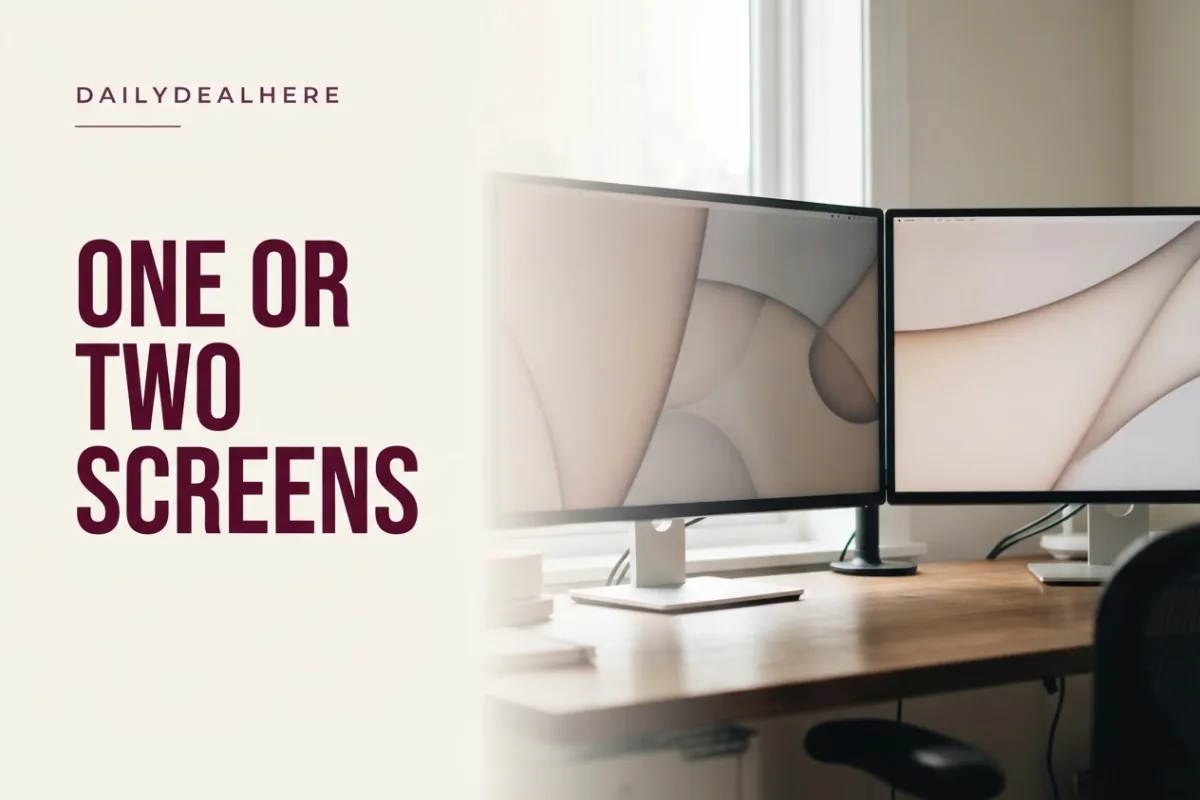
Both work well, and the right answer depends on how you use your screens. CCOHS offers clear setup rules for multiple monitors.
- If you use all screens equally: place them in front of you with the edges touching, angled into a semicircle.
- If you use one screen more: put the main screen directly in front of you as if it were a single monitor, and place the secondary screen to one side at an angle.
- Either way: keep them about an arm’s length away and at the same height.
Two 24 inch monitors give a large combined workspace with a bezel down the middle, which some people like as a natural divider between tasks. One 34 inch ultrawide gives similar width without a gap, which suits long spreadsheets and video timelines. If you are connecting several screens to a laptop, our guide to the best USB-C hubs for multiple monitors covers the connections.
Ultrawide monitors for office work
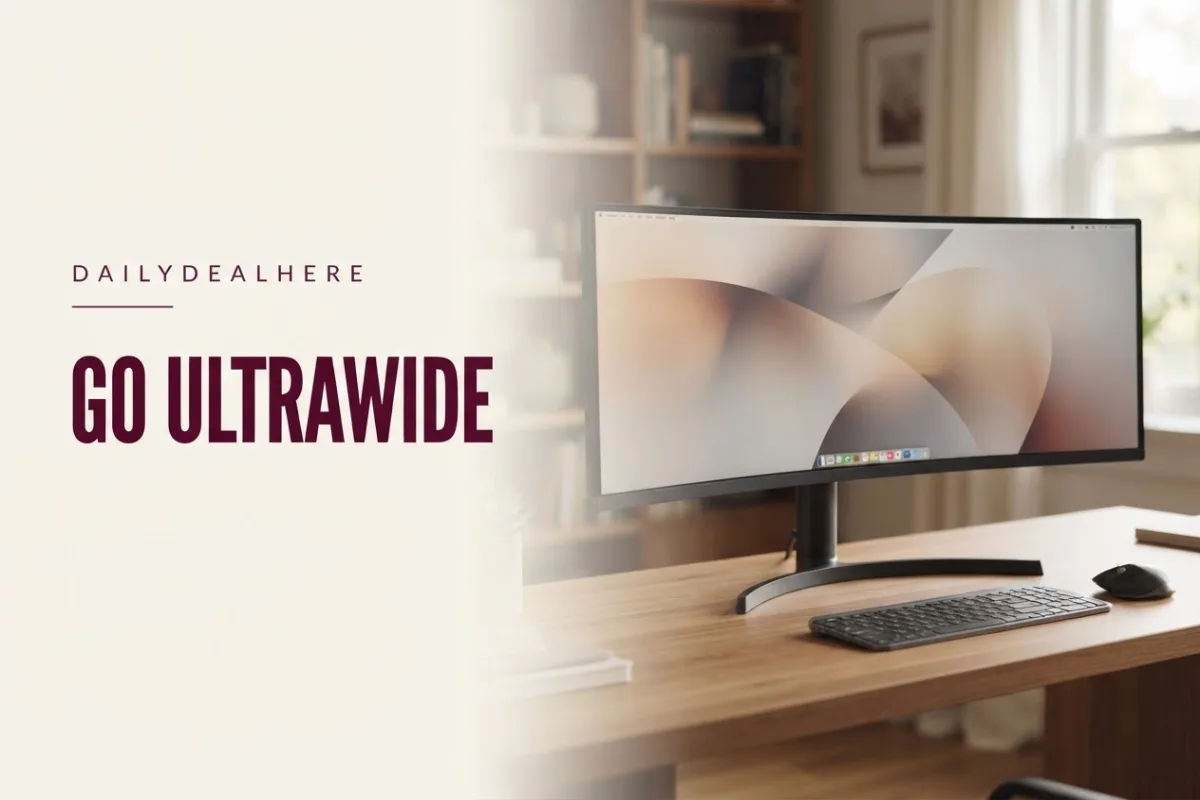
A 34 inch ultrawide at 3440 by 1440 is roughly as tall as a 27 inch 16:9 monitor but about a third wider, with similar pixel density. That makes it a natural replacement for two side by side screens without the bezel. The tradeoff is width: at arm’s length it fills about 58 degrees horizontally by our calculation, so you will turn your head slightly to reach the edges. CCOHS’s advice for wide monitors applies here: if you find yourself rotating your neck a lot, move the screen back and center your main work.
Cornell adds a practical tip for large screens: if you mostly work in left aligned documents, you can align yourself with a point about a third of the way across from the left rather than the exact center. Our guide to the best ultrawide monitors compares models.
Best size by type of work
| Work type | Recommended setup | Why |
|---|---|---|
| Email, writing, web | 24 or 27 inch, 1440p | Comfortable single window work with room for a sidebar |
| Spreadsheets and data | 27 inch 4K, 32 inch 4K or 34 inch ultrawide | More rows and columns visible at once |
| Programming | 27 inch 1440p or 4K, often two screens | Code and documentation or output side by side |
| Design and photo work | 27 or 32 inch 4K | Sharp detail and room for tool panels |
| Video editing | 34 inch ultrawide or 32 inch 4K | Long timelines and a large preview |
| Laptop users, occasional desk work | 24 or 27 inch plus a hub or dock | A big upgrade over a laptop screen for sustained work |
Laptop users: add a monitor
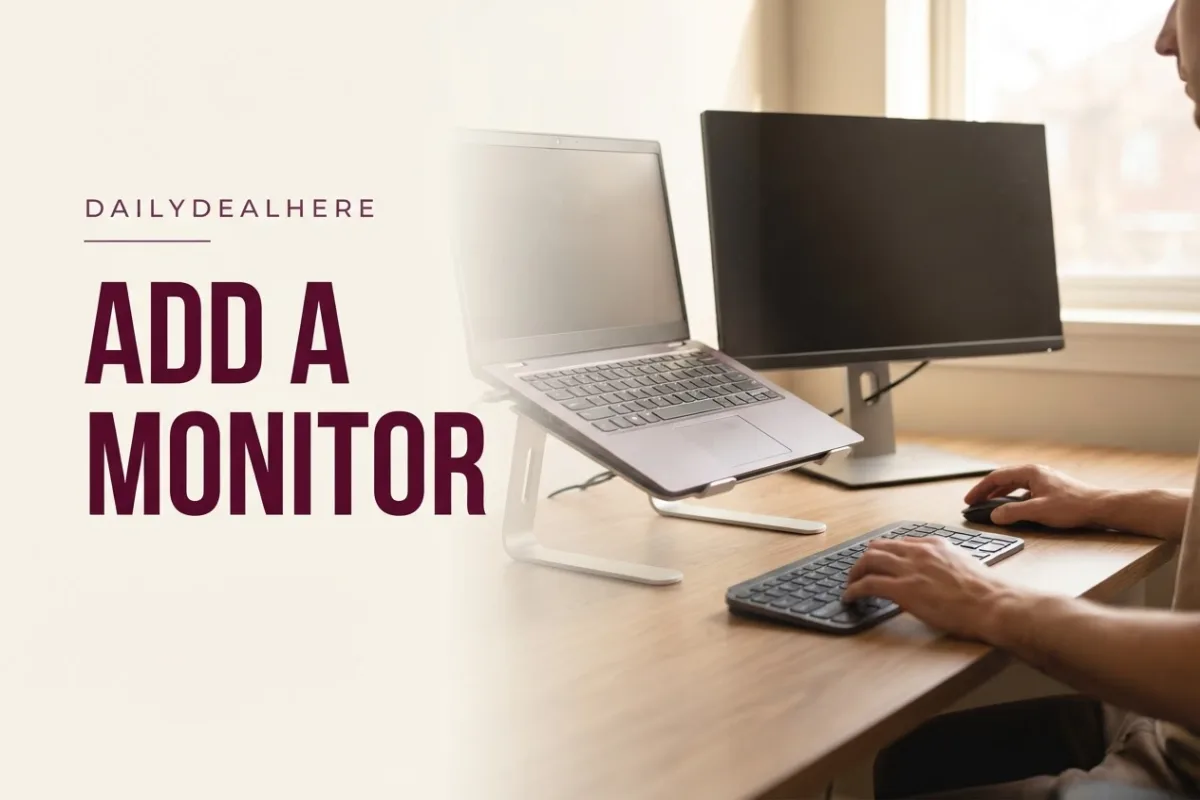
Cornell is direct about laptops: they are great for short periods, but for sustained use, the screen and keyboard cannot both be in a comfortable position at once. It recommends adding an external monitor, an external keyboard, or both, and arranging a proper workstation layout. For many home office workers, a single 24 or 27 inch monitor is the biggest comfort upgrade available.
How to position your monitor correctly
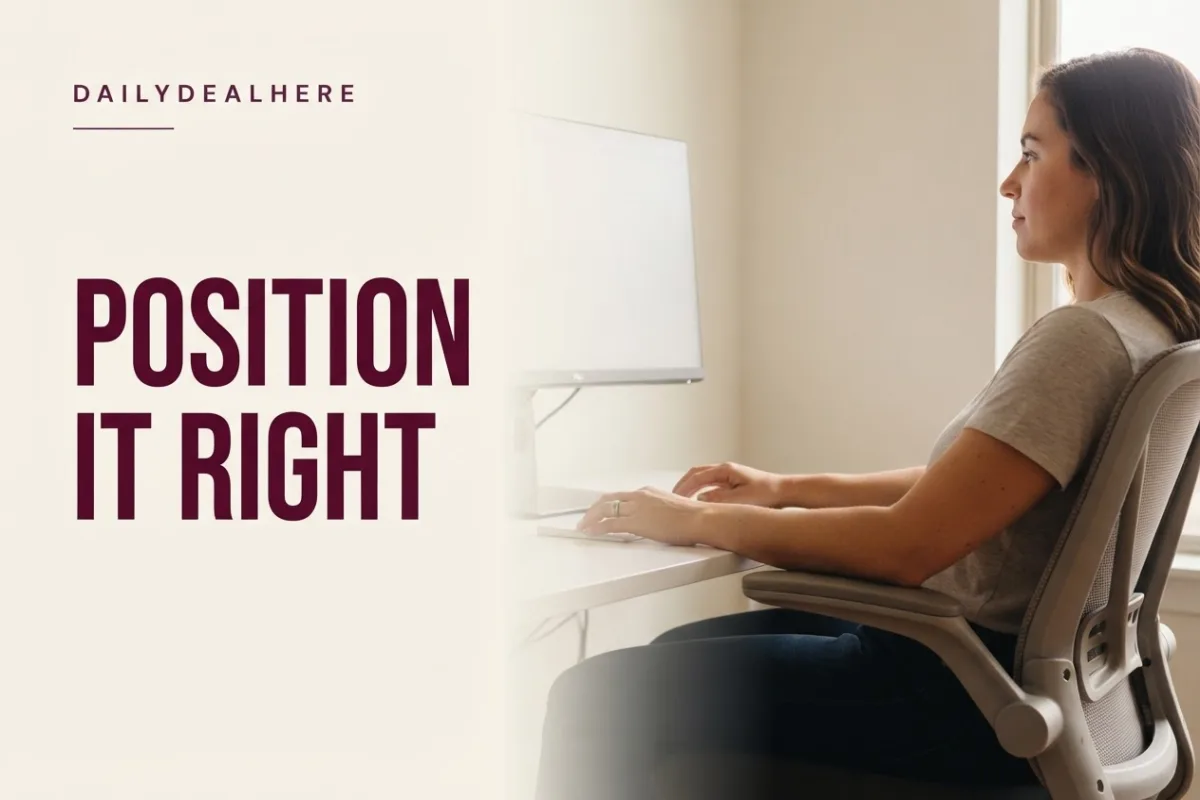
- Center it. Cornell says the monitor should be directly in front of you, facing you, not angled to the side.
- Set the distance. About an arm’s length, per CCOHS and Cornell. If text is too small at that distance, increase the font or zoom rather than moving closer.
- Set the height. Top of the viewing area at or slightly below eye level, so the center sits roughly 15 to 17.5 degrees below your line of sight.
- Adjust for bifocals. CCOHS notes that people who use bifocals, trifocals or progressive lenses may be more comfortable with the top of the screen slightly below eye level.
- Keep documents nearby. Cornell recommends placing paper documents close to the monitor and at a similar angle, ideally in a document holder.
- Recline slightly. Cornell suggests sitting back at around 100 to 110 degrees rather than bolt upright.
A good chair makes all of this easier to maintain through the day. Our guide to the best office chairs covers adjustable options.
Display scaling on high resolution screens
High resolution monitors are often used with display scaling, a setting in Windows and macOS that enlarges text and interface elements while keeping them sharp. A 27 inch 4K monitor at no scaling shows a huge amount of content, but text becomes very small at arm’s length. With scaling, you trade some workspace for comfortable text size, and you still get noticeably crisper letters than on a lower resolution screen of the same size.
This ties back to the CCOHS advice: if text is too small at the recommended distance, enlarge it rather than moving closer. Scaling is the cleanest way to do that. Try a few settings, such as 125 or 150 percent, and pick the one where you can read comfortably while sitting back.
Curved or flat for office work?
On 24 and 27 inch 16:9 monitors, curvature makes little practical difference, and flat screens are easier for straight lines in spreadsheets and design work. On wide screens such as 34 inch ultrawides, a curve keeps the edges closer to the same distance from your eyes as the center, which can make the far sides easier to read without leaning. If you choose an ultrawide for office work, a gentle curve is worth considering.
Monitor size and video calls
Video calls add one more consideration: the camera. A webcam clipped to the top center of the monitor sits close to your eye line when the monitor is positioned as CCOHS and Cornell recommend, with the top of the screen at or slightly below eye level. That makes eye contact look more natural. On very large or tall screens, the camera ends up farther above the part of the screen you are looking at, which can make you appear to look down. Keeping call windows near the top center of the screen helps. A larger monitor also lets you keep notes or a document open beside the call window without shrinking either.
Reducing eyestrain on any size
CCOHS explains that eyestrain comes from the muscular effort needed to focus at close distances, which is why sitting too close to any screen increases discomfort. A greater viewing distance reduces the risk of eyestrain but can make fine text harder to read, so the right distance is the one where you can read easily without strain. It also stresses taking regular rest breaks from focusing on the screen.
- Use display scaling or larger fonts on high resolution screens rather than leaning in.
- Match screen brightness to the room so the monitor is not the brightest thing in view.
- Look away from the screen periodically to rest your focus.
- Avoid placing the monitor high, which CCOHS says is worse than slightly too low.
Common mistakes when choosing a monitor size
- Buying big with low resolution: a 32 inch 1440p monitor gives no more workspace than a 27 inch 1440p.
- Ignoring desk depth: a large monitor on a shallow desk sits too close.
- Placing the monitor on top of the computer case, which CCOHS warns can put it too high.
- Angling a single monitor to the side, which Cornell says causes neck twisting.
- Mixing very different sizes in a dual setup, which makes it hard to keep both at the same height and distance.
If you are still choosing a brand, our guide to the best PC monitor brands compares the major makers.
Frequently asked questions
What is the best monitor size for office work?
For most people, a 27 inch monitor at 1440p or 4K. It gives more room than 24 inch for side by side work while fitting comfortably in your field of view at about an arm’s length, the distance CCOHS and Cornell recommend.
Is a 27 or 32 inch monitor better for office work?
At a standard desk, 27 inch is usually better. A 32 inch 4K monitor suits deep desks where you can sit a little farther back, or work with large spreadsheets and timelines. At 1440p, a 32 inch screen shows no more content than a 27 inch.
Is a 32 inch monitor too big for office work?
It can be at close range. By our calculation it spans about 31 degrees vertically at 28 inches, just beyond the 30 degree preferred zone CCOHS describes. Moving it slightly farther back and using a 4K panel with scaling solves this.
Which is better for work, a 24 inch or a 27 inch monitor?
A 27 inch screen has about a quarter more area and is better as a single main screen for multitasking. A 24 inch suits small desks and dual monitor setups, and is very sharp at 1440p.
How far should my monitor be from my eyes?
About an arm’s length, according to CCOHS and Cornell. Cornell suggests sitting back, raising your arm, and placing the screen where your fingertips touch it. If text is too small, enlarge the font rather than moving closer.
How high should my monitor be?
The top of the viewing area should be at or slightly below eye level. CCOHS suggests the center about 15 degrees below horizontal, and Cornell about 17.5 degrees. A monitor that is too high is worse than one slightly too low.
Is one ultrawide better than two monitors?
It depends on your work. A 34 inch ultrawide gives similar width to two screens without a bezel, good for spreadsheets and timelines. Two monitors let you separate tasks. CCOHS explains how to angle multiple screens to reduce neck twisting.
What resolution should an office monitor have?
At 24 inch, 1080p is workable and 1440p is sharper. At 27 inch, 1440p is the common balance and 4K is very sharp. At 32 inch, 4K is the resolution that makes the extra size useful.
Choose the size that fits your desk depth and viewing distance first, pair it with enough resolution to use the space, and position it at arm’s length with the top at eye level. For most office setups, that points to 27 inches.









Write Your Review
No reviews yet. Be the first to share your experience!