

A backlit bluetooth keyboard solves a problem most people only notice at night: you can touch type well enough in daylight and not at all in a dim room, and the moment the light goes the keys become guesswork. Adding a backlight fixes that, and it also quietly changes how long the keyboard runs between charges, which is the trade nobody mentions on the box. We sorted 9 of them from Arteck, Logitech, ProtoArc and more by what actually decides which one belongs on your desk in September 2026: how it connects, what sits under the keys, and how the lighting affects the battery.
Our top pick is the Logitech MX Keys Mini for pairing a backlight that brightens as your hands approach with a compact layout and the ability to jump between three devices. Below we sort the field from slim scissor switch boards up to full mechanical keyboards so you can match one to how you type. For the rest of the desk, our computers section covers adjacent kit.

Pros
- Backlight activates as your hands approach, which saves the battery
- Three device switching on dedicated buttons
- Compact layout brings the mouse closer than a full size board
- Scissor switches are quiet enough for a shared room
Cons
- No number pad, which matters for spreadsheet work
- Costs more than most compact wireless boards
The MX Keys Mini is the board that solves the specific problem this category creates. Backlighting drains a wireless keyboard fast, and the proximity sensor here lights the keys only when your hands are near, which turns days of battery life back into weeks.
The compact layout is the second reason to choose it. Losing the number pad moves the mouse several inches closer, and over a working day that is a real ergonomic difference rather than a specification detail.
Three device switching works exactly as it should: one press moves the keyboard from a laptop to a tablet, with no re pairing. For anyone with a work machine and a personal one on the same desk, that alone justifies it.
Bottom line: the best all round backlit wireless keyboard here, provided you do not need a number pad.
- Connection: Bluetooth, three devices
- Backlight: proximity activated with brightness steps
- Switches: scissor
- Layout: compact, no number pad
- Power: USB-C rechargeable
- Software: companion app for remapping
- Charging: works while plugged in
- Platforms: Windows and Mac layouts printed
Buy this for a desk with more than one machine, for anyone who types in a shared room, and for people who want the mouse closer than a full size board allows. It suits writers and general office work. Skip it if you enter figures daily and need a number pad, or if you want mechanical typing feel.
Pair all three devices during setup rather than one at a time later, since the buttons are only useful once they are filled. Set the backlight to a lower brightness step for normal rooms and let the proximity sensor handle the rest. Install the companion software if you want to remap the function row, and check battery level there rather than waiting for the warning.

Pros
- Lowest cost route to a properly backlit wireless keyboard
- Works across tablets, phones and computers
- Slim enough to travel with a tablet
- Rechargeable with a long run time when unlit
Cons
- Single device pairing, so switching means re pairing
- Backlight has no proximity sensing and drains faster when left on
The Arteck is the value answer and it has held that position for years. It lights the keys properly, it connects to almost anything with Bluetooth, and it costs a fraction of the premium boards here.
It pairs with one device at a time, which is the main thing you give up. Moving it between a tablet and a computer means going through pairing again rather than pressing a button, and in practice most owners settle on one device.
Battery life is good with the lighting off and ordinary with it on, since there is no proximity sensing to help. Running a lower brightness step is the sensible habit here.
Bottom line: the value pick, and the right board for a second desk or a tablet setup.
- Connection: Bluetooth, single device
- Backlight: brightness controlled, no proximity sensing
- Switches: low profile
- Layout: full size key spacing in a slim body
- Power: rechargeable
- Devices: tablets, phones, computers
- Weight: light enough to travel
- Software: none required
This suits a tablet setup, a secondary desk, or anyone who wants backlighting without spending much. It travels well. Look higher up the list if you move between machines constantly, since single device pairing turns that into a chore, or if you want the battery savings a proximity sensor brings.
Compare this against the premium compacts on two questions only: how many devices you actually switch between, and whether you leave the backlight on all evening. If the answers are one device and occasional lighting, this covers the same ground for far less. If you switch machines daily, the dedicated buttons further up are worth the difference.

Pros
- Number pad for figure work without losing the other features
- Proximity sensing backlight preserves battery
- Three device switching on dedicated buttons
- Low profile keys with a settled, quiet action
Cons
- Full width pushes the mouse further from the keyboard
- Larger footprint on a small desk
The MX Keys S is what to buy when the compact version is right in every respect except the missing number pad. Everything that makes the smaller board good is here, in a full width body.
The proximity lighting matters just as much at this size, and the three device buttons work identically. If you already know you want the top pick but enter figures daily, this is simply the correct version.
The cost is desk width and mouse distance, which is the trade every full size board makes. On a large desk it is unremarkable; on a small one it is the reason compact layouts exist.
Bottom line: the full size option for people who need a number pad and want everything else the top pick offers.
- Connection: Bluetooth, three devices
- Backlight: proximity activated with brightness steps
- Switches: low profile scissor
- Layout: full size with number pad
- Power: USB-C rechargeable
- Software: companion app with customizable actions
- Charging: works while plugged in
- Platforms: Windows and Mac
Buy this if you work with numbers daily, run accounting or data entry, and want the multi device and lighting features of the compact board. It suits a large desk. Anyone with a small desk or a mouse heavy workflow will be better served by the compact version.
Set up all three device slots at the start, and use the companion software to assign the shortcut keys you actually use rather than leaving the defaults. Lower the backlight step for lit rooms. If the mouse feels too far away, try moving the keyboard slightly left of center rather than accepting the reach.

Pros
- Mechanical typing feel with multi device switching
- Low profile switches keep the board lower than typical mechanicals
- Backlight with brightness control
- Long battery life for a lit mechanical board
Cons
- Louder than the scissor switch boards in this range
- Heavier and taller on the desk
This is the board for someone who wants mechanical feel without giving up the conveniences of a modern wireless keyboard. Defined actuation, a longer travel, and the same device switching as the scissor switch boards.
Low profile switches are the compromise that makes it work on a normal desk. A full height mechanical board sits noticeably higher and often needs a wrist rest; this one is closer to a slim board while still feeling mechanical.
It is louder, and that is not fixable in a shared room. If someone else works within earshot, one of the scissor switch boards remains the diplomatic choice.
Bottom line: the pick for mechanical feel with multi device switching, in a room where the noise is your own business.
- Connection: Bluetooth, three devices
- Switches: low profile mechanical
- Backlight: brightness controlled
- Power: USB-C rechargeable
- Layout: available full size and compact
- Software: companion app
- Noise: louder than scissor switch boards
- Platforms: Windows and Mac
Choose this if you type for hours and want the feedback of mechanical switches, work in your own room, and use more than one machine. It suits developers and writers. Avoid it in an open office or a shared home room, where the sound carries further than you would expect.
Decide on switch type before layout: the same board ships with different switch feels and that choice is not reversible here, unlike on a hot swappable board. If you have never used mechanical switches, try one somewhere before ordering. If you want to change the feel later, the hot swappable option in this list is the better route.

Pros
- Hot swappable switches change the feel without soldering
- 75 percent layout keeps arrows and navigation in a small footprint
- Tri mode connection covers Bluetooth, dongle and cable
- Control knob for volume and other functions
Cons
- Enthusiast board with more setup than a plug and type keyboard
- Taller and heavier than the slim boards here
The F75 Pro is the enthusiast entry here, and hot swappable switches are the reason. Pull a switch out with a puller and press another one in, and the board types completely differently without a soldering iron in sight.
The 75 percent layout is the sweet spot for a lot of people: no number pad, but arrows and the navigation keys stay as physical keys rather than moving onto a function layer.
Tri mode connection means it works over Bluetooth with a tablet, over the dongle with a desktop and over the cable when the battery is flat. The control knob is a small pleasure that becomes hard to give up.
Bottom line: the pick if you want to shape the typing feel yourself rather than accept what the box gives you.
- Switches: hot swappable mechanical
- Layout: 75 percent with arrows
- Connection: Bluetooth, 2.4 GHz dongle and USB-C
- Backlight: RGB
- Extras: control knob
- Construction: gasket mounted
- Power: rechargeable
- Use: enthusiast and general typing
This is for someone interested in keyboards as objects rather than just tools: you want to try different switches, you like a knob, and a bit of setup is part of the appeal. It suits a personal desk. Anyone who wants a keyboard to work out of the box and never think about it should pick one of the slim boards here.
Use the supplied puller when changing switches and press the new one straight down, since bent pins are the usual mistake. Keep the dongle taped inside the case or to the underside so it does not vanish. Turn the RGB lighting down or off when running on battery, because full brightness animation is by far the biggest drain on a board like this.

Pros
- Tri mode connection at a lower price than the premium boards
- RGB backlighting with lighting modes
- Mechanical style key feel without mechanical pricing
- Full size layout with number pad
Cons
- Gaming styling is not to every taste on a work desk
- RGB animation drains the battery quickly
The K521KS covers the tri mode feature set at a price well below the enthusiast and premium boards. Bluetooth for a tablet, dongle for a desktop, cable when the battery runs out.
RGB lighting here is the full multi color kind with animation modes rather than a plain white backlight. It looks the part on a gaming desk and it is the single largest drain on the battery, so a static lower brightness is the setting to live with.
The typing feel aims at mechanical without full mechanical construction, which is a fair compromise at this level. Styling is squarely gaming, which is worth knowing if the board is going in a plain office.
Bottom line: the affordable tri mode option, best on a desk where the lighting is a feature rather than a distraction.
- Connection: Bluetooth, 2.4 GHz dongle and USB-C
- Backlight: RGB with modes
- Keys: mechanical feel
- Layout: full size with number pad
- Power: rechargeable
- Extras: media controls
- Styling: gaming
- Use: gaming and general typing
Buy this for a gaming desk that also does everyday work, where tri mode connection and RGB are both wanted. It suits someone who wants flexibility at a moderate price. A plain office desk, or anyone who finds RGB distracting, is better served by one of the white backlit boards here.
Run a static lighting mode at low brightness on battery and save the animations for when it is plugged in, which roughly doubles what you get from a charge. Keep drinks away from a board with this many openings around the keys. Store the dongle in its slot rather than loose in a drawer.

Pros
- Tri mode connection covers desktop, tablet and cable
- Softer typing sound than typical gaming boards
- Backlit keys with lighting modes
- Compact enough to leave room for mouse movement
Cons
- Gaming aesthetics on a work desk
- Battery life falls quickly with lighting animation on
The S99 is the quieter member of the gaming pair here. The switches are chosen for a softer, deeper sound rather than the sharp click many gaming boards produce, which makes it easier to live with in a room shared with other people.
Tri mode connection gives the same flexibility as its siblings: dongle for low latency on a desktop, Bluetooth for a tablet, cable as a fallback.
Lighting is the usual battery question. Animated modes look good and cost a lot of run time; a static low setting is what most owners settle on after the first week.
Bottom line: the gaming board to choose when the sound of typing matters as much as the lighting.
- Connection: Bluetooth, 2.4 GHz dongle and USB-C
- Backlight: modes with adjustable brightness
- Switches: softer sounding
- Layout: compact gaming
- Power: rechargeable
- Extras: media shortcuts
- Styling: gaming
- Use: gaming and general typing
This suits a shared room where a loud board would annoy someone, and a desk that mixes gaming with ordinary work. It fits people who want wireless flexibility without enthusiast pricing. Anyone who wants a plain professional look, or the longest battery life, should choose a white backlit board instead.
Use the dongle for gaming, since it has lower latency than Bluetooth, and keep Bluetooth paired to a second device for everything else. Turn lighting animation off when running on battery. If the board slides on the desk under fast movement, check the feet are clean, since dust is usually the cause rather than the design.
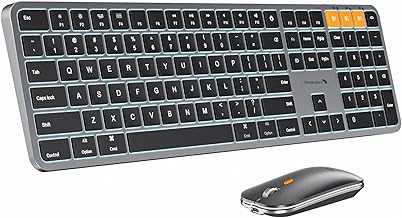
Pros
- Keyboard and mouse match and pair together out of the box
- Mac layout with the modifier keys where Mac users expect them
- Full size board with number pad
- Backlit keys with brightness control
Cons
- Mac layout is awkward on a Windows machine
- Bundled mouse limits your choice of pointing device
The KM100-A answers a narrow question well: what goes on a Mac desk when the built in options are not wanted. Keyboard and mouse arrive together, in a matching finish, with the Mac modifier layout printed correctly.
Getting the layout right matters more than it sounds. Command and Option in the wrong physical positions is a small irritation that recurs every few minutes, and no amount of remapping fixes the printing on the keys.
Buying a set means accepting the bundled mouse, which is fine as a general pointer and is not going to satisfy anyone particular about mice. As a complete desk in one purchase it is well judged.
Bottom line: the pick for a Mac desk that wants a matching backlit set in a single purchase.
- Set: keyboard and mouse
- Layout: Mac key arrangement
- Backlight: brightness controlled
- Connection: Bluetooth with multi device pairing
- Layout size: full size with number pad
- Power: rechargeable
- Finish: matching keyboard and mouse
- Platform: aimed at macOS
Buy this for a Mac desk where you want a backlit keyboard and a matching mouse without choosing them separately. It suits a clean setup and a single platform. Avoid it if the keyboard will spend significant time on Windows, where the modifier labels will be wrong, or if you are particular about mice.
Confirm which layout version you are ordering, since sets like this often ship in both Mac and Windows arrangements under similar names. Decide whether you actually want the bundled mouse: if you already own a mouse you like, a keyboard on its own from elsewhere in this list may serve better for similar money.

Pros
- Touchpad removes the need for a separate mouse on a sofa
- Media controls sit on dedicated keys
- Backlighting with several colors for a dark room
- Compact enough to sit on the arm of a chair
Cons
- Cramped for long typing sessions at a desk
- Touchpad is small and basic compared with a real mouse
This is the specialist of the group. A media machine connected to a television needs a keyboard you can use from across the room with one hand and no desk, and that is a different product from a typing keyboard.
The touchpad is what makes it work. Without one you need a mouse and a surface to use it on, which on a sofa is exactly the problem. Media keys handle the rest without navigating a menu.
Backlighting matters more here than anywhere else in this list, since a media machine is usually used with the room lights down. What you give up is comfort for real typing, which this was never for.
Bottom line: the pick for a television or media machine, and the wrong board for a desk.
- Type: compact media keyboard with touchpad
- Backlight: several colors with brightness control
- Connection: Bluetooth
- Extras: dedicated media keys
- Power: rechargeable
- Size: sized for one hand and a sofa arm
- Pointing: built in touchpad
- Use: media machines and televisions
Choose this for a computer connected to a television, a media center machine, or a presentation setup where you stand away from the desk. It suits sofa use in a dark room. It is not a keyboard for writing or for a working desk, where the cramped layout becomes tiring quickly.
Pair it to the media machine and leave it paired rather than sharing it with other devices, since re pairing from a sofa is more annoying than it sounds. Use a low backlight step in a dark room so the screen stays the brightest thing in front of you. Charge it on a schedule rather than waiting for it to die mid film.
How to Choose a Backlit Bluetooth Keyboard
Connection first, then what is under the keys. Those two decide most of the daily experience, and everything else is refinement.
Bluetooth, a Dongle, or Both

Bluetooth connects without using a port, works with tablets and phones as well as computers, and is the reason most keyboards here can serve several devices. Its weakness is the first thirty seconds: a Bluetooth keyboard is not available until the operating system has loaded, so it cannot be used in a computer boot menu or a login screen on some machines.
A 2.4 GHz dongle plugs into a USB port and behaves like a wired keyboard from the moment the machine powers on. It is more reliable, it has lower latency, and it costs you a port and a small piece of plastic that is easy to lose.
Several boards here offer both, sometimes described as tri mode along with a USB cable. That is the arrangement to look for if the keyboard serves a desktop and a tablet, since you can leave the dongle in the computer and pair the tablet over Bluetooth without ever choosing between them.
What Backlighting Costs in Battery
This is the part the listings gloss over. A wireless keyboard with the lighting off can run for months on a charge. The same keyboard with the backlight on runs for days. The gap is not marginal, and the headline battery figure in a listing is almost always measured with the lighting off.
Manufacturers handle this in different ways. Some fit a proximity sensor so the lights come on when your hands approach and fade when you stop typing, which cuts the drain dramatically without you having to think about it. Others rely on a timeout, and the cheapest simply leave it to you to switch off.
Brightness levels matter for the same reason. A board with several steps lets you run the lighting low enough to see the keys in a dim room without burning through the battery, and low is usually all you need. Full brightness is for a dark room, not a lit one.
Where the light sits matters as much as whether it exists. Keyboards that light the legends from underneath let you read the keys; keyboards that light only the gaps between keys throw a glow across the desk and leave the letters as dark shapes. It is the difference between a backlight that works at two in the morning and one that is decorative, and photographs in a listing usually make it obvious which you are looking at.
Scissor, Membrane, or Mechanical

Scissor switches are what laptops use: a short travel, a quiet press, and a slim board. They suit typing in a shared room, they take up almost no desk height, and they are what most of the slim keyboards here use. What they do not give is a distinct feel at the moment the key registers.
Mechanical switches have a separate mechanism under every key, with a defined actuation point and a much longer travel. Typing on one is more precise and considerably louder, and the board is taller and heavier. The keyboards here that describe hot swappable switches let you change the feel later without soldering, which is why enthusiasts favor them.
Membrane boards sit below both, with a soft press and no defined actuation point. They are quiet and inexpensive, and on a keyboard used occasionally rather than all day they are perfectly adequate. Match the switch to how many hours a day you type and to whether anyone else is in the room.
Keycap material is a quiet durability question on any board you type on daily. Cheaper caps have their legends printed on the surface and wear through on the keys your fingers rest on, which on a backlit board also means the light stops coming through the letter. Caps with the legend moulded in two colors of plastic, or cut through entirely, keep their markings for the life of the board.
Layout, and What a Compact Board Drops
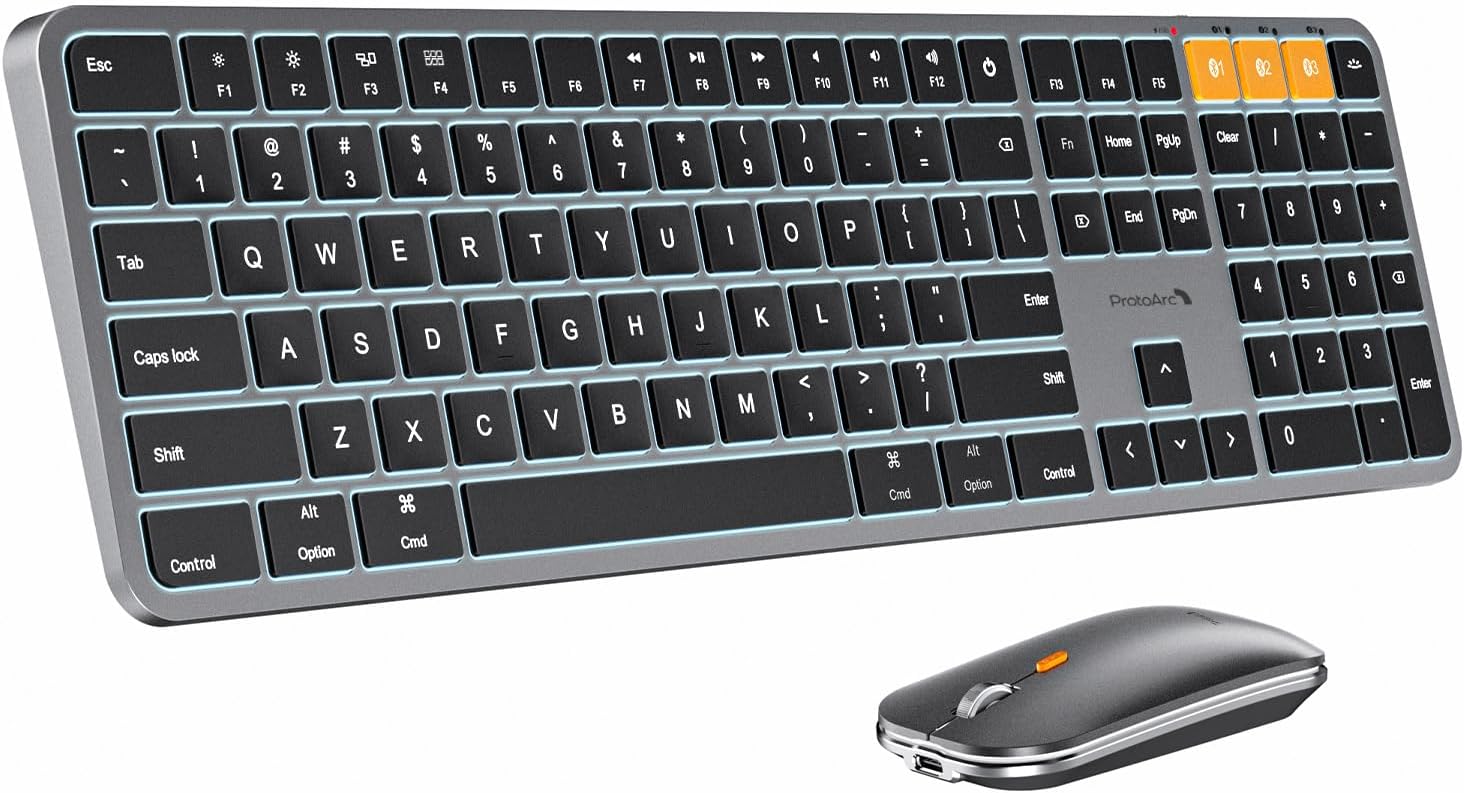
Full size boards include a number pad, which matters enormously if you work with figures and not at all if you do not. Dropping it moves the mouse closer to the keyboard, which is a real ergonomic gain over a long day and the main reason compact layouts sell.
Below full size the shorthand gets confusing. A tenkeyless board drops the number pad and keeps everything else. A 75 percent layout also compresses the navigation cluster and puts the function row on top. A mini layout goes further still, moving several keys onto a function layer you access by holding a modifier.
Work out which keys you use without looking. People who rely on Home, End and the arrow cluster feel a compact layout immediately; people who mostly type prose barely notice. If a keyboard is going in a bag with a tablet, small wins regardless.
Charging and Being Caught Flat
Rechargeable boards with USB-C are the norm here, and the practical question is whether the keyboard keeps working while plugged in. Most do, which turns a flat battery into a minor inconvenience rather than a stopped afternoon, but it is worth confirming for a board you rely on.
Removable AA batteries have not disappeared and have one advantage: a spare pair in a drawer means never waiting for a charge. The trade is weight, and the slow leak of remembering to buy batteries.
Whichever you choose, look for a low battery indicator that warns you before it stops rather than at the moment it does. Boards that show battery level in companion software are more useful still, since you can see it coming. Our article archive covers more desk equipment.
Pairing Several Devices and Switching
Multi device pairing is the feature that changes how a keyboard is used. Three dedicated buttons, each holding one paired device, means one keyboard serves a work laptop, a personal desktop and a tablet, and switching takes a single press.
The alternative on cheaper boards is a key combination to re pair, which technically works and in practice means people stop switching. If you genuinely use more than one machine, dedicated buttons are worth paying for; if you have one computer, they are a feature you will never press.
Check platform behavior too. A keyboard sold with a Mac layout puts Command and Option where a Mac user expects them, and using it on Windows means the modifier keys are labelled wrongly even when they work. Several boards here print both sets or ship a switch to swap the behavior.
Companion software is the other half of multi device use. The boards from the larger makers let you remap keys, set the backlight timeout and see the battery level from an application, and some carry those settings inside the keyboard so they follow it to another machine. Cheaper boards do everything through key combinations printed in the manual, which works and which nobody remembers a month later.
| Type | Best at | Weak at |
|---|---|---|
| Slim scissor switch | Quiet typing, low profile, travels well | Short travel, no distinct actuation feel |
| Mechanical, hot swappable | Precise typing feel, switches can be changed later | Louder, taller and heavier on the desk |
| Membrane compact | Quiet and inexpensive for occasional use | Vague press, less durable over years of typing |
| Media and TV keyboard | Sofa use, controlling a media machine | Cramped for real typing sessions |
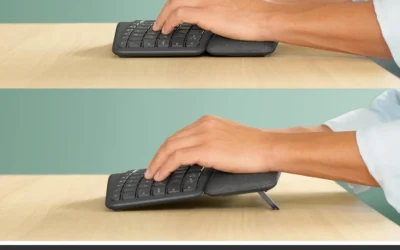
One thing worth checking before buying anything on this list: whether the keyboard has any adjustable tilt. Slim boards often sit almost flat, which suits some wrists and not others, and folding feet are cheap to include and easy to leave out. If you already know you prefer a raised back edge, confirm the board has feet rather than assuming, because a keyboard propped on a folded envelope is a poor long term arrangement.
Why You Should Trust Us
We build these lists from published specification and from the pattern of what long-term owners report rather than from marketing copy. For each keyboard here we checked which connections it offers and whether a dongle is included, what switch type sits under the keys, whether the backlight has brightness steps or a proximity sensor, how the maker states battery life and whether that figure assumes the lighting is off, and how many devices can be paired at once.
We set aside boards that are sold as illuminated but light only a logo or an edge strip rather than the key legends, since that does nothing for typing in the dark. Where a keyboard ships in a Mac specific layout we say so, because modifier key placement is the detail that turns a good keyboard into a daily irritation on the wrong platform.
Final Thoughts
Best overall is the Logitech MX Keys Mini. The proximity sensor lighting solves the battery problem that undermines most backlit wireless boards, the compact layout brings the mouse closer, and three device switching is a single button press.
Best value is the Arteck Universal Backlit Wireless Keyboard. It covers the core job for a fraction of the outlay, works across tablets and computers, and is the sensible choice for a second desk or a machine you use occasionally.
For specific needs, the Logitech MX Keys S is the full size version of the top pick for anyone who needs a number pad, the MX Mechanical suits someone who wants mechanical feel with the same multi device switching, the AULA F75 Pro is the pick for hot swappable switches and a custom feel, the Redragon K521KS covers tri mode connection at a lower price, the AULA S99 suits gaming with wireless flexibility, the ProtoArc KM100-A pairs a Mac layout keyboard with a matching mouse, and the Arteck TV keyboard is the one for a media machine used from a sofa. More picks are indexed across our category index and the electronics section.
Backlit Bluetooth Keyboard FAQs
How much does the backlight shorten battery life?
Dramatically, and the headline figures usually assume it is off. A wireless keyboard rated for months of use is being measured unlit; run the same board with the lighting on and you are into days rather than months. Boards with a proximity sensor cut that drain a long way by lighting only while your hands are near, and running a lower brightness step helps more than people expect. Treat the printed battery figure as the unlit ceiling rather than what you will see.
Can I use a Bluetooth keyboard to get into the BIOS?
Usually not. Bluetooth is handled by the operating system, so the keyboard does not exist until the system has loaded, which rules out boot menus, firmware settings and some login screens. A 2.4 GHz dongle behaves like a wired keyboard from power on and does work in those situations. If you build or troubleshoot computers, pick a board that includes a dongle, or keep a cheap wired keyboard in a drawer for that purpose.
Is a mechanical keyboard too loud for an office?
It depends on the switch rather than on the category. Tactile and clicky switches are noticeably loud; linear and silenced switches are much quieter, and hot swappable boards let you change them without soldering. In a shared room a scissor switch board remains the safest choice. In a room of your own, a mechanical board with quieter switches gives most of the typing feel without the complaints.
Will a Mac layout keyboard work on Windows?
It will type, but the modifier keys sit in the Mac arrangement and are labelled accordingly, so Command occupies the position Windows expects Alt to be in. Some boards include a switch that swaps the behavior, and Windows can remap keys in software. If the keyboard will spend most of its life on Windows, buy the Windows layout and save yourself the daily correction. Our computers archive covers more setup questions.
Do I need a number pad?
Only if you enter figures regularly. For spreadsheet work and accounting it is much faster than the number row and worth the width. For writing, coding and general use it mostly pushes the mouse further from the keyboard, which over a long day is a genuine ergonomic cost. A separate number pad is a middle path: keep the compact board and add the pad on the days you need it.

Write Your Review
No reviews yet. Be the first to share your experience!