

Buying a printer used to mean picking one job: print, scan, or copy, and living with whatever machine handled that job best. Today’s all-in-one printers fold all three of those tasks, often with fax support and an auto document feeder thrown in, into a single machine that fits on a home office desk or a shelf in a small business. That convenience comes with tradeoffs in size, running cost, and print quality that are easy to miss until after you have already unboxed the wrong machine.
We compared real owner ratings and review volume across dozens of current models, then filtered out anything with a weak track record, to shortlist 9 machines worth buying in September 2026. The lineup spans budget inkjets, color and monochrome laser workhorses, and photo-capable home units from Epson Workforce, Canon PIXMA, Brother and more, so there is a fit whether you print a few pages a week or run a small office off one machine.
Our top pick is the Canon PIXMA TR8620a for its balance of photo-capable inkjet printing, a built-in auto document feeder, and fax support in one compact body. If your household only needs a single-purpose printer instead of a full print, scan, copy, and fax combo, our home printers guide covers that separate use case in more depth.

Pros
- Prints, scans, copies, and faxes from one compact machine
- Auto document feeder speeds up multi-page scan and copy jobs
- Handles photo paper and document paper without constant tray swaps
- Wireless and mobile printing work reliably out of the box
- Alexa compatibility adds hands-free print commands
Cons
- Ink cartridges cost more over time than tank-style systems
- Photo print speed is noticeably slower than plain document printing
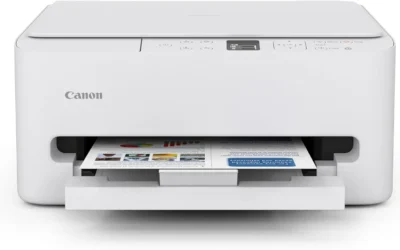
The Canon PIXMA TR8620a is built for a household or small office that wants one machine to cover printing, scanning, copying, faxing, and the occasional photo print. It targets buyers who do not want to own a separate scanner and a separate photo printer, and it largely delivers on that promise in a body small enough for a shared desk.
Everyday document printing is fast and consistent, and the auto document feeder makes short work of multi-page scans or copies that would otherwise mean lifting the scanner lid repeatedly. Photo output is genuinely usable, not just a checkbox feature, thanks to Canon's inkjet color handling.
The tradeoff is running cost. Like most inkjet all-in-ones, standard ink cartridges add up faster than a toner-based machine under heavy use, so this is a better fit for moderate volume than for a busy office printing all day.
Bottom line: for a household or small office that wants print, scan, copy, fax, and photo output without buying four separate devices, the TR8620a is the most well-rounded option in this guide.
- Functions: print, scan, copy, fax
- Print technology: color inkjet
- Auto document feeder included
- Wireless, mobile printing, and Alexa compatible
- Photo and document paper handling
Because it uses a color inkjet engine, the TR8620a can move between everyday document pages and photo prints without swapping to a different machine. It will not match a dedicated photo printer on premium glossy output, but for family photos and school projects it is more than capable.
Best suited to households and small offices that want broad functionality, print, scan, copy, fax, and photo, in one machine rather than the absolute lowest running cost. Heavy daily printers may prefer a laser option instead.

Pros
- Very low upfront cost for a true all-in-one machine
- Built-in fax and auto document feeder rare at this price
- Mobile printing setup is simple for non-technical users
- Thousands of verified owners confirm long-term reliability
Cons
- Print speed lags behind pricier inkjet and laser models
- Standard ink cartridges cost more per page than tank-style printers
The Canon PIXMA TR4720 is the budget entry point in this guide, and it earns that spot honestly rather than by cutting corners on core functionality. It still packs print, scan, copy, and fax into one machine, along with an auto document feeder, features that some pricier competitors skip entirely.
Print quality on everyday documents is solid, and the mobile app setup is straightforward enough for a first-time all-in-one buyer. Its enormous base of verified owner reviews is one of the largest of any model in this guide, which is a meaningful signal of consistent real-world performance.
The compromise is speed and running cost: it is not the fastest machine here, and standard ink cartridges will need replacing more often under heavy use than a tank-style or laser system.
Bottom line: for anyone who wants full all-in-one functionality without a big upfront cost, the TR4720 is the safest budget pick in this lineup.
- Functions: print, scan, copy, fax
- Print technology: color inkjet
- Auto document feeder included
- Mobile printing supported
- Compact desktop footprint
Well suited to school assignments, household paperwork, and light photo printing. It is not built for high daily volume, but for typical home use it holds up well over time according to its large owner base.
Standard ink cartridges are the main ongoing cost. Light to moderate printers will not notice much impact, but households printing daily in high volume should budget for more frequent cartridge replacement than a toner-based machine would require.

Pros
- Laser toner handles high page volumes cheaper per page than inkjet
- Color laser output stays sharp for text and simple graphics
- 250-sheet paper tray and 50-sheet auto document feeder cut refill trips
- Automatic duplex printing saves paper on both sides
Cons
- Higher upfront cost than comparable inkjet all-in-ones
- Bulkier footprint needs more desk or shelf space
The Brother MFC-L3720CDW targets buyers who have outgrown inkjet running costs but still want color output. As a color laser all-in-one, it prints crisp text and passable color graphics while keeping per-page toner costs well below what a comparable inkjet machine would cost under the same volume.
The 250-sheet paper tray combined with a 50-sheet auto document feeder means it can handle a stack of scans, copies, or print jobs without constant babysitting, which matters for a small office or a busy household. Automatic duplex printing is standard, cutting paper use for anyone printing longer documents.
It is a larger, heavier machine than the inkjet options in this guide, so it needs a dedicated spot rather than a tight corner of a desk.
Bottom line: for anyone printing color documents in real volume, this is the more economical long-term choice over an inkjet all-in-one.
- Functions: print, scan, copy, fax
- Print technology: color laser, up to 19 pages per minute
- 250-sheet paper tray, 50-sheet auto document feeder
- Automatic duplex printing
- Wireless and wired network connectivity
Color laser output is sharper and more consistent for text and basic charts than most inkjet machines, though it is not meant to replace photo printing. For office documents, presentations, and reports, the quality is more than adequate.
Best for households or small offices printing in color regularly and in higher volume than an inkjet cartridge can comfortably support. If color is not a requirement, a monochrome laser model will cost less to buy and run.

Pros
- Highest average owner rating of any model in this guide
- Monochrome laser toner is inexpensive to run for document-heavy use
- Duplex printing and multi-user network setup built in
- Compact design for small offices or home workspaces
Cons
- Black and white only, so photo or color graphics are not an option
- Toner replacement is a bigger single cost than an ink cartridge
The HP LaserJet Pro MFP 3101sdw carries the strongest average owner rating of any machine in this guide, which is a meaningful endorsement for a device that lives on a desk and gets used daily. It is a monochrome laser all-in-one, so it trades color output for lower running costs and faster, more consistent black and white printing.
Duplex printing and wireless network sharing make it a solid fit for a small team splitting one machine, and setup is straightforward without needing extra software beyond the standard driver and app.
The obvious limitation is no color support at all, so any household or office that regularly needs color documents will need a different model, potentially alongside this one for pure text work.
Bottom line: for black and white document printing, scanning, and copying, this is the most consistently well-reviewed option in this lineup.
- Functions: print, scan, copy
- Print technology: monochrome laser
- Automatic duplex printing
- Wireless network connectivity
- Best-for-small-teams design
Duplex printing and wireless sharing make this an easy machine for two or three people to split without stepping on each other's print jobs. It is built with small office workflows in mind rather than a single home user.
Toner-based printing avoids the ink-drying issues that can affect inkjet printers left unused for stretches, making this a low-maintenance choice for a machine that will not be used every single day.

Pros
- Fast color laser output built for office-level volume
- 50-sheet auto document feeder and 250-sheet tray reduce manual reloading
- 3-year limited warranty is longer than most competitors offer
- Handles fax, copy, and scan alongside color laser printing
Cons
- Largest and heaviest unit in this guide, needs dedicated office space
- Premium price puts it above casual home buyers' budgets
The Canon Color imageCLASS MF753Cdw II is positioned above the rest of this guide's color laser options, built for offices that print in higher volume and need it done quickly. Its rated speed of 35 pages per minute is fast for a color laser all-in-one, and the 250-sheet tray paired with a 50-sheet auto document feeder keeps it running through longer jobs without constant attention.
The 3-year limited warranty stands out against the 1-year coverage typical of consumer printers, a sign that Canon expects this machine to handle sustained office use rather than occasional home printing.
All of that capability comes in the largest, heaviest body in this guide, and at a price that puts it out of reach for buyers who only need light home use.
Bottom line: for an office that prints color documents daily and wants a warranty to match, this is the most business-ready machine in the lineup.
- Functions: print, scan, copy, fax
- Print technology: color laser, up to 35 pages per minute
- 250-sheet paper tray, 50-sheet auto document feeder
- Automatic duplex printing
- 3-year limited warranty
The combination of print speed, paper capacity, and feeder size makes this the machine best equipped to handle an office printing throughout the day rather than in short bursts.
Best suited to offices with real daily print volume that want color output and a longer warranty. Home buyers with lighter needs will get better value from one of the inkjet or budget laser picks in this guide.

Pros
- 2.7 inch color touchscreen makes copy and scan settings easy to navigate
- Automatic two-sided printing built in
- 35-page auto document feeder handles longer documents in one pass
- Works with Alexa for voice print commands
Cons
- Ink cartridge costs add up faster than tank-style printers
- Touchscreen menus take a short learning curve for first-time users
The Epson WorkForce Pro WF-3820 is built around ease of use, with a 2.7 inch color touchscreen that makes navigating copy, scan, and fax settings noticeably simpler than a small monochrome display. It fits Epson's WorkForce Pro line, which leans toward small office use rather than pure home printing.
The 35-page auto document feeder and automatic two-sided printing both cut down on manual handling for longer jobs, and Alexa compatibility adds a convenient hands-free option for quick print requests.
As a color inkjet machine, ongoing ink costs will run higher than a laser alternative under heavy use, and the touchscreen menus take a short adjustment period for anyone new to Epson's interface layout.
Bottom line: a strong pick for anyone who wants an easier day-to-day interface without stepping up to laser running costs.
- Functions: print, scan, copy
- Print technology: color inkjet
- 2.7 inch color touchscreen
- 35-page auto document feeder, 250-sheet paper tray
- Automatic two-sided printing, Alexa compatible
The color touchscreen is the standout feature here, turning what is usually a menu-diving chore on cheaper printers into a quick, visual process for scan and copy settings.
A good fit for a home office that values an easy day-to-day interface and does not need fax support, since this model skips it in favor of touchscreen convenience and duplex printing.

Pros
- Print, scan, copy, and fax in one compact color inkjet unit
- Instant Ink trial included at purchase to offset early running costs
- Auto document feeder and duplex printing built in
- AI-capable features assist with mobile scanning and organization
Cons
- Ongoing ink costs rise after the included Instant Ink trial ends
- Fewer verified owner reviews than the more established models in this guide
The HP OfficeJet Pro 8139 packs print, scan, copy, and fax into a color inkjet all-in-one aimed at home offices. The included Instant Ink trial is a genuine value-add, softening the early cost of ownership while the household figures out its actual print volume.
Auto document feeder and automatic duplex printing are both included, and HP's mobile app adds AI-assisted scanning features that help organize and clean up scanned documents automatically.
Being one of HP's newer OfficeJet Pro releases, it has a smaller review history than some of the longer-established models here, so its long-term reliability track record is still building.
Bottom line: a well-equipped color all-in-one for a home office, especially attractive if the Instant Ink trial fits your print habits.
- Functions: print, scan, copy, fax
- Print technology: color inkjet
- Auto document feeder included
- Automatic duplex printing
- Instant Ink trial included at purchase
The bundled Instant Ink trial period lowers upfront running costs, but it is worth checking HP's ongoing subscription pricing once the trial ends to see whether it still fits your print volume.
Best suited to a home office wanting fax support and duplex printing in a compact color inkjet unit, particularly if the Instant Ink trial lines up with expected print volume.

Pros
- Budget-friendly entry point into monochrome laser all-in-ones
- Duplex printing and wireless setup included at this price
- Compact size fits tight home office spaces
- Toner-based printing avoids ink drying out between uses
Cons
- Black and white output only
- Fewer advanced office features than pricier laser MFPs
The HP LaserJet MFP M235sdw is the entry point into monochrome laser all-in-ones in this guide, aimed at buyers who want the low running costs of toner without stepping up to a pricier office-grade machine. It still includes duplex printing and wireless setup, features that used to be reserved for higher-tier models.
Being toner-based, it handles long gaps between print jobs better than an inkjet machine, which can suffer clogged nozzles if left unused. Scan and copy functions are both included alongside printing.
It skips fax and some of the higher-capacity paper handling found on pricier laser MFPs, so it is better suited to light, occasional use than a busy office.
Bottom line: a sensible low-cost way into laser printing for anyone who mostly needs black and white output at home.
- Functions: print, scan, copy
- Print technology: monochrome laser
- Automatic duplex printing
- Wireless connectivity
- Compact desktop footprint
Its smaller footprint makes it an easy fit for a home office corner or a shelf, without needing the desk space that larger office-grade laser MFPs require.
A reasonable choice for anyone who wants laser printing's lower running cost but does not need fax or heavy daily volume. Busier offices should look at a higher-capacity laser model instead.

Pros
- 36 pages per minute print speed among the fastest in this guide
- 50-page auto document feeder and 250-sheet tray reduce manual handling
- Dual-band WiFi and Ethernet both included
- Automatic duplex printing standard
Cons
- No fax function, so it is copy and scan only alongside printing
- Monochrome only, not suited for color documents or photos
The Brother DCP-L2640DW skips fax entirely and focuses on doing print, scan, and copy quickly and reliably. At a rated 36 pages per minute, it is one of the fastest machines in this guide, and the 50-page auto document feeder paired with a 250-sheet main tray keeps it moving through longer jobs without frequent reloading.
Both dual-band WiFi and wired Ethernet are included, giving it more network flexibility than most inkjet all-in-ones, which is useful if a shared office network needs a stable wired connection as a backup.
The obvious limitation is the lack of fax and color output, so anyone who specifically needs either feature should look elsewhere in this guide.
Bottom line: for fast, no-frills black and white printing, scanning, and copying, this is one of the quickest and most flexible machines here.
- Functions: print, scan, copy
- Print technology: monochrome laser, up to 36 pages per minute
- 50-page auto document feeder, 250-sheet paper tray
- Dual-band WiFi and Ethernet
- Automatic duplex printing
Its 36 page per minute rating combined with a 250-sheet tray and 50-sheet feeder make it one of the quickest machines in this guide for working through stacks of documents.
Toner-based printing means pages come out dry and smudge-resistant immediately, and the engine tolerates long idle periods better than an inkjet system would.
How to Choose the Right All-in-one Printers for Your Home or Office
Not every all-in-one machine is built for the same job. A model that suits a household mailing a few letters a month looks very different from one that needs to keep a small office running five days a week. Before comparing specific machines, it helps to know which specs actually change your day-to-day experience and which ones are mostly marketing language dressed up to look important.
Six criteria tend to matter more than any glossy box copy: print technology, speed and paper handling, wireless setup, ongoing ink or toner cost, office features like fax and duplex printing, and how the machine has actually held up for real owners over time. The rest of this guide walks through each one before pointing to specific models that handle it well.
Inkjet vs. Laser: Which Print Technology Fits Your Habits

Inkjet all-in-ones remain the better choice for anyone who prints photos, greeting cards, or color-heavy documents, since inkjet dye and pigment blends handle color gradients and glossy paper more naturally than toner. They also tend to cost less upfront, which is why budget-friendly picks like the Canon PIXMA TR4720 and the higher-tier TR8620a both lean on inkjet engines rather than laser ones.
Laser all-in-ones win on speed and cost per page once you are printing mostly black and white text, contracts, or forms. Toner cartridges last far longer than ink cartridges under heavy use, and pages come out of the tray dry and smudge-resistant immediately, which matters if documents get handled or filed right after printing rather than left to dry on a desk.
Color laser models, such as the Brother MFC-L3720CDW and the Canon Color imageCLASS MF753Cdw II, split the difference: they handle color charts, presentations, and basic graphics acceptably while keeping the lower running costs of toner. They are not a substitute for true photo printing, but they cover most office and school color needs without the ink refill cycle of a home inkjet.
Speed, Paper Capacity, and Auto Document Feeders
Pages per minute only tells part of the story. A machine rated for a fast print speed can still slow your day down if its paper tray only holds a small stack and needs constant refilling, or if it lacks an auto document feeder for scanning and copying multi-page originals without babysitting the glass one sheet at a time.
Look at tray capacity and auto document feeder size together rather than in isolation. The Brother DCP-L2640DW and the Canon Color imageCLASS MF753Cdw II both pair a 250-sheet main tray with a 50-sheet auto document feeder, which means fewer trips to reload paper and faster handling of stacks of scans or copies during a busy morning.
The Brother DCP-L2640DW also stands out on raw speed, rated at 36 pages per minute, which is noticeably quicker than most inkjet all-in-ones in this guide. That speed advantage matters most if you regularly print long documents rather than one-off pages.
Wireless Setup and Mobile Printing

Nearly every current all-in-one supports WiFi and a companion mobile app, but the setup experience still varies quite a bit between brands. Simpler home models tend to walk you through pairing with a phone app in a few steps, while office-oriented machines often expose more network options, including dual-band WiFi and wired Ethernet for shared office use across several desks.
If several people in a household or small office will print from different devices, favor a model offering both WiFi and Ethernet, such as the Brother DCP-L2640DW, so connectivity does not depend entirely on a single wireless network staying stable throughout the day. Voice assistant support, found on models like the Canon PIXMA TR8620a and the Epson WorkForce Pro WF-3820, is a smaller convenience worth a mention for hands-free print requests.
Ink and Toner Costs Over Time

The sticker price on the box rarely reflects the real cost of owning a printer. Standard inkjet cartridges run out faster than most people expect, especially with regular color printing, so a cheap machine can end up costing more over a year than a pricier one with efficient cartridges or a toner-based engine that spreads cost over thousands of pages.
Some manufacturers offset this with trial subscription programs bundled into the purchase, like the Instant Ink trial included with the HP OfficeJet Pro 8139. These trials lower the early cost of ownership meaningfully, but it is worth checking the ongoing subscription price after the trial period before assuming the low running cost continues indefinitely.
Laser toner cartridges, by contrast, cost more per cartridge but print far more pages before needing a replacement, which is why the monochrome laser models in this guide, including the HP LaserJet Pro MFP 3101sdw and the budget-friendly HP LaserJet MFP M235sdw, tend to work out cheaper per page for anyone printing text-heavy documents in volume.
Fax, Duplex, and Multi-User Office Features
Fax may sound outdated, but medical offices, legal paperwork, and some government forms still rely on it, so it remains a meaningful feature for small offices and even some households. Automatic duplex, meaning two-sided printing, is a smaller but everyday convenience: it saves paper and skips the manual flip-and-reprint routine that older printers required.
If more than one or two people will share the machine, check for multi-user network features like mobile scan-to-email, cloud upload, and simultaneous wireless plus wired access, all of which show up on the more office-focused models in this guide, including the Brother MFC-L3720CDW and the Canon Color imageCLASS MF753Cdw II.
Build Quality and Long-Term Reliability
All-in-one printers combine several moving parts, scanner glass, paper feed rollers, and print heads or toner drums, so long-term reliability depends heavily on build quality rather than the spec sheet alone. A large base of verified owner reviews with a high average rating over a long sales history, like the Canon PIXMA TR4720’s, is one of the more trustworthy signals available before you buy.
Warranty length is another practical clue: the Canon Color imageCLASS MF753Cdw II ships with a 3-year limited warranty, noticeably longer than the 1-year coverage typical of consumer inkjet models, which suggests the manufacturer expects it to hold up under office-level use rather than light household duty.
| Model | Print Type | Auto Document Feeder | Fax | Best For |
|---|---|---|---|---|
| Canon PIXMA TR8620a | Inkjet, color | Yes | Yes | Best overall home office use |
| Canon PIXMA TR4720 | Inkjet, color | Yes | Yes | Best value |
| Brother MFC-L3720CDW | Laser, color | Yes | Yes | Higher-volume color printing |
| HP LaserJet Pro MFP 3101sdw | Laser, monochrome | Yes | No | Small teams, document-heavy work |
| Canon Color imageCLASS MF753Cdw II | Laser, color | Yes | Yes | High-volume office printing |
| Epson WorkForce Pro WF-3820 | Inkjet, color | Yes | No | Touchscreen ease of use |
| HP OfficeJet Pro 8139 | Inkjet, color | Yes | Yes | Instant Ink households |
| HP LaserJet MFP M235sdw | Laser, monochrome | Yes | No | Budget home office |
| Brother DCP-L2640DW | Laser, monochrome | Yes | No | Fast copy and scan without fax |
For a broader look at other office equipment beyond printers, browse the full office products category or explore our full category directory to compare related buying guides across the site.
Why You Should Trust Us
Our approach starts with real ownership data instead of manufacturer marketing copy. We pulled verified customer ratings and review volume for each machine, then filtered out models with weak average scores or too few reviews to trust, so every printer in this guide has a meaningful track record behind it rather than a handful of early reviews that could go either way.
We also looked at how each model fits a specific kind of buyer rather than ranking everything on a single overall score. A household that occasionally scans a document has different priorities than a small office running a shared machine all day, so this guide separates budget, value, color laser, monochrome laser, and touchscreen picks instead of pretending one machine wins every category.
We also cross-checked product listings against manufacturer specification sheets to confirm claimed features like auto document feeder size, duplex printing, and fax support, rather than repeating marketing bullet points at face value. Where two models looked similar on paper, we compared paper tray size, feeder capacity, and warranty terms to identify what actually separates them for everyday use, and we update this guide as models are discontinued or replaced.
Final Thoughts
If you only take one recommendation from this guide, make it the Canon PIXMA TR8620a. It covers the widest range of everyday needs, print, scan, copy, fax, and photo output, in one machine that stays reasonably compact for a home office desk, and its review volume gives it a solid track record to lean on.
Budget-conscious buyers should look at the Canon PIXMA TR4720, which delivers nearly the same core feature set, including fax and an auto document feeder, at a noticeably lower price and with an unusually large base of verified owners backing up its long-term reliability. For households or small offices printing mostly black and white paperwork in higher volume, the HP LaserJet Pro MFP 3101sdw earns its place with the strongest average owner rating in this entire lineup, while the Brother MFC-L3720CDW is worth a look if that same volume needs to come out in color.
Whichever machine you choose, match it to how you actually print day to day rather than the longest spec sheet. If your printing needs sit closer to a single-purpose printer than a true multi-function machine, our home printers roundup is a better starting point than an all-in-one.
FAQs
What makes a printer count as an all-in-one instead of a regular printer?
An all-in-one printer combines printing with at least scanning and copying in a single unit, and most current models also add fax support and an auto document feeder for handling multi-page originals. A regular printer only handles print jobs and has no flatbed scanner or copy function built in, so it cannot stand in for a scanner or a standalone copier.
Should I buy an inkjet or laser all-in-one printer in 2026?
Choose inkjet if you print photos or color-heavy documents regularly, since inkjet handles color gradients and glossy photo paper better than toner ever will. Choose laser if most of your printing is black and white text and forms, since toner costs less per page and holds up better under frequent, everyday use without drying out between print jobs.
Do I still need fax on an all-in-one printer?
Fax has faded from everyday household use, but some medical, legal, and government paperwork still requires it, so it remains a genuinely useful feature for small offices and certain households. If you never expect to send or receive a fax, you can often save money by choosing a model that skips it entirely rather than paying for a feature you will not use.
How much should I expect to spend on all-in-one printers each year in ink or toner?
Running costs depend heavily on print volume and whether the machine uses standard cartridges, high-yield cartridges, or toner. Households printing occasionally can get by cheaply with almost any model in this guide, while frequent printers should weigh toner-based laser machines or ink subscription programs to keep per-page costs down over a full year of use.
Where can I compare other office equipment besides printers?
You can browse our full articles directory for other office and productivity buying guides, alongside the printer comparisons covered here, to see how these picks fit into a wider home office setup.
Write Your Review
No reviews yet. Be the first to share your experience!