

If you have ever tried to keep a spreadsheet, a video call, and a browser all visible at once, you already understand the appeal of the best split screen monitors. A split screen monitor is not a separate category of display. It is any monitor that can show two video sources side by side on one panel, either through a hardware feature the manufacturer calls Picture by Picture (PBP) and Picture in Picture (PIP), or through a built in layout tool that some brands label Screen Split. Understanding that distinction is the whole game, so we lead with it before naming a single product.
Picture by Picture splits the panel into two equal halves and drives each half from a different input, which lets a work laptop sit next to a desktop tower with no software involved. Picture in Picture drops a smaller window into a corner, handy for keeping an eye on a second machine. Screen Split, by contrast, tiles the windows from a single computer into preset zones. The 7 displays below all deliver at least one of these features, and we sorted them by real customer ratings so the most trusted panels rise to the top. Our top pick is the ViewSonic VX3276-MHD for its dependable built in Screen Split modes and a sharp 32 inch IPS panel that suits both home and office desks.
Below you will find the full shortlist, followed by a buying guide that explains how to match a split screen monitors to your desk, your inputs, and your budget. For a wider view of large formats, our roundup of the best ultrawide monitors pairs naturally with this guide.

Pros
- Large 32 inch IPS panel with wide viewing angles
- Built in Screen Split arranges windows automatically
- Ultra thin bezels look clean on any desk
- HDMI and DisplayPort inputs both included
- Flicker reduction and blue light filter for long days
Cons
- 1080p resolution can look soft once each half shrinks
- Fixed stand offers tilt but no height adjustment
The ViewSonic VX3276-MHD earns the top spot because it does the fundamentals of split screen work well without asking you to install anything. Its Screen Split utility lives in the monitor, tiling the windows from one computer into halves or quadrants so you can keep a document, a browser, and a chat window all in view. The 32 inch IPS panel gives each of those zones enough room to stay legible.
The IPS panel holds color and contrast steady across wide viewing angles, which helps when you glance between the left and right halves of the screen. Ultra thin bezels keep the focus on your content, and both HDMI and DisplayPort inputs mean it slots into most desktops and laptops without an adapter.
The main compromise is resolution. At 1080p, a single full screen task looks fine, but text softens once you split the panel into two narrow columns. There is also no height adjustment on the stand, so a monitor arm is worth considering for the best ergonomics.
Bottom line: for a single computer desk that needs dependable, no fuss window tiling on a large screen, the VX3276-MHD is the most trustworthy all rounder on this list.
- Panel size: 32 inches
- Resolution: 1920 x 1080 (Full HD)
- Panel type: IPS
- Aspect ratio: 16:9
- Split feature: Screen Split utility
- Inputs: HDMI, DisplayPort
- Eye care: flicker reduction, blue light filter
This monitor fits home office workers and students who run a single computer and want a large, affordable canvas for two or three windows at once. It is the natural pick for anyone who values a clean IPS image and simple window tiling over premium resolution or dual input support.
Pair the VX3276-MHD with a monitor arm if your desk allows, since the fixed stand is its only real limitation. If you plan to read fine text for long stretches, sit a normal arm length away so the 1080p pixels stay comfortable. For dual computer use, look instead at a PBP capable model further down this list.

Pros
- 34 inch ultrawide gives two proper work areas
- Built in split screen mode organizes windows
- WQHD resolution keeps text sharp when halved
- FreeSync smooths scrolling and motion
- Gentle price for an ultrawide of this size
Cons
- 75Hz refresh trails the faster panels here
- Basic stand with limited adjustment
The Samsung SJ55W is our best value pick because it delivers a genuine ultrawide multitasking experience without the premium of a super ultrawide. Its 34 inch 21:9 shape splits neatly into two near square work areas, and Samsung includes an Easy Setting Box style split screen mode that snaps applications into place.
WQHD resolution at 3440 x 1440 is the detail that makes this size work. Each half retains enough pixels to keep spreadsheets and documents crisp, which is where a lower resolution ultrawide would struggle. FreeSync keeps scrolling and video smooth, a welcome touch even for productivity users.
The tradeoffs are modest. The 75Hz refresh rate is lower than the 100Hz and 144Hz panels elsewhere on this list, and the stand keeps things simple with limited adjustment. Neither is a dealbreaker for office work.
Bottom line: if you want the most usable screen real estate for the money and mostly run a single computer, the SJ55W is the smart buy.
- Panel size: 34 inches
- Resolution: 3440 x 1440 (WQHD)
- Aspect ratio: 21:9 ultrawide
- Refresh rate: 75Hz
- Split feature: built in split screen mode
- Adaptive sync: AMD FreeSync
- Inputs: HDMI
The SJ55W suits budget conscious buyers who want their first ultrawide for everyday multitasking, from spreadsheets to browser research. It is ideal for a single laptop or desktop where the goal is more horizontal space rather than combining two separate machines.
Enable the split screen software on first setup to get the most from the wide panel. If you crave smoother motion for casual gaming, note the 75Hz ceiling and set expectations accordingly. A monitor arm can improve the viewing height if the included stand sits too low for your chair.

Pros
- Borderless design suits multi-monitor desk setups
- AMD FreeSync reduces tearing during light gaming
- Eye Care mode reduces flicker for long work sessions
- Picture-in-picture and picture-by-picture support
Cons
- 100Hz refresh rate is modest next to gaming-first ultrawides
- 5ms response time is slower than the fastest options here
- HDR10 support is basic rather than a certified HDR tier
Samsung's ViewFinity S50GC is aimed squarely at office and home productivity use rather than competitive gaming, and it shows in the balance of features. The borderless design makes it a clean choice if you plan to eventually add a second monitor alongside it, and the Ultra-WQHD resolution gives plenty of room for spreadsheets, documents, and browser tabs side by side.
Eye Care mode is a genuinely useful feature for anyone spending long stretches in front of the screen, reducing flicker that can contribute to eye fatigue over a full workday. AMD FreeSync support means occasional gaming still looks reasonably smooth even though this is not a gaming-first panel.
The 100Hz refresh rate and 5ms response time are fine for productivity and casual gaming but noticeably behind the fastest panels on this list, so competitive gamers should look elsewhere.
Bottom line: a comfortable, well-rounded ultrawide for anyone whose priority is a full workday at the desk rather than fast-paced gaming.
- Screen size: 34 inches
- Resolution: 3440 x 1440 Ultra-WQHD
- Refresh rate: 100Hz
- Response time: 5ms
- HDR: HDR10
- Sync: AMD FreeSync
- Design: borderless, PIP/PBP
- Model: LS34C502GANXZA
Use picture-by-picture mode to run a laptop and a desktop side by side on the same screen, which is handy for anyone juggling a personal and a work machine. Enable Eye Care mode in the on-screen menu for long work sessions to reduce flicker-related eye strain.
Best suited to remote workers and students who want a wide, borderless canvas for productivity with occasional light gaming, rather than shoppers chasing the highest refresh rate available.
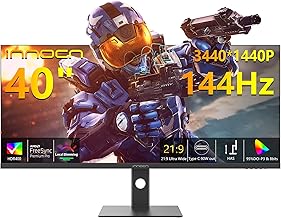
Pros
- 40 inch canvas splits into generous zones
- Screen Split plus true PIP and PBP
- 90W USB Type C charges a laptop over one cable
- 144Hz refresh and FreeSync feel fluid
- HDR400 and IPS for vivid, wide angle color
Cons
- Large footprint needs a deep desk
- Built in speakers are modest
The INNOCN 40 inch is the most flexible split screen monitor here because it offers both approaches at once. You can use Screen Split to tile windows from a single computer, or switch to PIP and PBP to combine two separate sources on the large 40 inch panel. That versatility covers almost every multitasking scenario.
Its standout convenience is the 90W USB Type C port, which drives one half of a PBP layout while charging a connected laptop over a single cable. Paired with a 144Hz refresh rate, FreeSync, and an HDR400 IPS panel, it feels fast and looks vivid whether you are working or watching.
The size is the thing to plan for. A 40 inch ultrawide needs a deep desk and a bit of viewing distance, and the built in speakers are only adequate. Neither undercuts the core appeal.
Bottom line: for a large, do everything ultrawide that handles both software and hardware splits, the INNOCN 40 inch is hard to beat.
- Panel size: 40 inches
- Resolution: 3440 x 1440 (WQHD)
- Aspect ratio: 21:9 ultrawide
- Refresh rate: 144Hz
- Split feature: Screen Split, PIP, PBP
- USB Type C: 90W power delivery
- HDR: HDR400
The combination of a wide 40 inch panel and both split methods makes this the top choice for power multitaskers. Run a full width editing timeline, split it into thirds for research, or feed two machines into a clean PBP layout. The USB C dock keeps a laptop charged while it fills its half.
This model is built for professionals who want one large panel to replace a cluttered dual monitor setup, especially laptop users who value single cable docking. It suits developers, analysts, and creators who keep many windows open at once.

Pros
- High resolution 5K2K keeps text crisp when split
- 45 inch curved panel wraps the field of view
- PIP and PBP for two source layouts
- 90W USB Type C for single cable laptops
- HDR400 and wide gamut for creative work
Cons
- Premium price for the resolution
- Curve and size demand a large desk
The INNOCN 45C1R is the pick for people who split their screen and still demand sharp detail. Its 5K2K resolution across a 45 inch curved panel means that even when you halve the width with PBP, each side keeps a high pixel density that flatters text and images alike. That makes it a strong fit for design and editing work.
PIP and PBP let you combine two sources, while a 90W USB Type C port keeps a laptop charged over the same cable that carries its video. The 1500R curve wraps the wide panel around your view so both edges stay a similar distance from your eyes, easing the head turning that flat super ultrawides can cause.
This resolution and size carry a premium price, and the curved 45 inch body needs a deep, wide desk. Those are the costs of its class leading clarity.
Bottom line: if crisp text and accurate color matter as much as screen space, the 45C1R is the high resolution choice on this list.
- Panel size: 45 inches
- Resolution: 5K2K 5120 x 1440
- Curvature: 1500R
- Split feature: PIP and PBP
- USB Type C: 90W power delivery
- HDR: HDR400
- Aspect ratio: 32:9 super ultrawide
This monitor targets designers, video editors, and photographers who split a reference on one side and a canvas on the other and cannot accept soft text. It also suits anyone who wants the widest, sharpest single panel for immersive multitasking.
The high 5K2K resolution and wide color coverage make this the standout for color sensitive tasks. Keep a full resolution preview on one half and your editing tools on the other, and rely on the crisp pixel density to judge fine detail accurately.

Pros
- 144Hz refresh rate at a large 49-inch size
- Height and tilt adjustable stand, unlike many ultrawides in this size class
- 99% sRGB color coverage with HDR400 support
- USB-C, DisplayPort, and HDMI cover most setups
Cons
- 3840 x 1080 resolution is lower density than Dual QHD rivals
- 1800R curve is gentler, less enveloping than tighter-curve panels
- Less brand recognition than Samsung or Dell
INNOCN's 49-inch curved gaming monitor stands out mainly for its stand, which offers height and tilt adjustment in a size class where many rivals ship with a fixed or tilt-only base. That makes it noticeably easier to position at eye level for long sessions, whether gaming or working.
The 144Hz refresh rate keeps most games feeling smooth, and 99% sRGB coverage with HDR400 support handles both color-sensitive work and games with HDR content reasonably well. Built-in speakers round out the package for a simpler setup.
The 3840 by 1080 resolution is lower density than the Dual QHD panels also on this list, so text will look a touch less sharp at this size, and the 1800R curve is gentler than some rivals, which some buyers may prefer for reduced line distortion at the edges.
Bottom line: a well-rounded 49-inch option, especially for anyone who prioritizes stand adjustability alongside solid gaming performance.
- Screen size: 49 inches, 32:9
- Resolution: 3840 x 1080 WDFHD
- Refresh rate: 144Hz
- Curve: 1800R
- Color: 99% sRGB, HDR400
- Ports: USB-C, DisplayPort, HDMI
- Stand: height and tilt adjustable
- Audio: built-in speakers
A strong choice if stand adjustability matters to you as much as screen size, since many 49-inch ultrawides skip height adjustment entirely. Consider a Dual QHD panel instead if pixel density for text work is the higher priority.
Use the height and tilt adjustment to position the screen so the top of the panel sits at or slightly below eye level, reducing neck strain during long sessions on a screen this wide.

Pros
- 49 inch DQHD 5120 x 1440 super ultrawide
- PIP, PBP, and Screen Split all supported
- 120Hz refresh with a fast 1ms response
- 1500R curve for an enveloping view
- 120 percent sRGB and HDR color
- VESA mount support for arms and walls
Cons
- Large panel requires a wide, sturdy desk
- Lesser known brand than the big names
The Gawfolk 49 inch rounds out the list as an immersive super ultrawide that supports every split method. Its DQHD 5120 x 1440 resolution is noticeably sharper than a 3840 x 1080 super ultrawide, so two windows placed side by side keep crisp text. PIP, PBP, and a Screen Split mode all appear in the menu, covering both single computer tiling and dual source layouts.
A 120Hz refresh rate and a fast 1ms response make it smooth for work and capable for gaming, while a 1500R curve and 120 percent sRGB coverage give it an enveloping, colorful presentation. VESA mount support means you can lift the wide panel onto an arm to reclaim desk space.
The main considerations are the footprint and the brand. It is a large display that wants a wide desk, and Gawfolk is less established than the household names above, though owner feedback is strong.
Bottom line: for a high resolution super ultrawide that does it all and mounts cleanly, the Gawfolk 49 inch is a compelling value.
- Panel size: 49 inches
- Resolution: DQHD 5120 x 1440
- Aspect ratio: 32:9 super ultrawide
- Curvature: 1500R
- Refresh rate: 120Hz, 1ms response
- Split feature: PIP, PBP, Screen Split
- Mounting: VESA support, height adjustable
This monitor fits buyers who want a sharp, high resolution super ultrawide for both productivity and immersive play, and who are comfortable choosing value over a marquee brand. It suits anyone who plans to mount the panel on an arm.
Mount the panel on a VESA arm rated for its weight, or seat the included stand on a wide, stable surface. Use the eye care settings for long sessions and clean the curved screen gently with a microfiber cloth to keep the wide surface streak free.
How to Choose the Best Split Screen Monitors
Not every monitor that markets itself as a multitasking display handles two sources equally well. The features that matter change depending on whether you want to combine two separate computers or simply tidy the windows from one. Use the criteria below to narrow the field from ViewSonic, Samsung, INNOCN and more before you commit.
PBP and PIP Versus Software Screen Split

The first question is whether you need true dual input support. Picture by Picture and Picture in Picture are hardware features that live in the monitor firmware, so they work even when the two sources run different operating systems. This is the feature you want if a company laptop has to share the screen with a personal desktop. Screen Split, on the other hand, is a convenience layer for a single machine that snaps applications into halves, thirds, or quadrants without dragging window borders by hand.
Among our picks, the Samsung ViewFinity S50GC and the INNOCN 40 inch models spell out PIP and PBP directly, while the ViewSonic VX3276-MHD leans on its Screen Split utility. Match the label to your actual workflow rather than assuming every split feature does the same job.
Panel Size and Aspect Ratio

Splitting a 27 inch panel in half leaves two cramped columns, which is why most serious split screen work happens on 32 inch and larger displays. Standard 16:9 panels at 32 inches give each half a comfortable window, while 21:9 ultrawide and 32:9 super ultrawide panels are built for this task from the ground up. A 34 inch ultrawide splits into two near square work areas, and a 49 inch super ultrawide effectively replaces a dual monitor stand with a single seamless sheet of glass.
Think about desk depth too. A curved 49 inch panel needs room to breathe, and sitting too close to a flat ultrawide can leave the edges feeling far away. If your desk is shallow, a flat 32 inch or a gently curved 34 inch is the more livable choice.
Resolution and Pixel Density

When you cut a screen in two, you also cut the usable resolution per side, so pixel density matters more here than on a single application display. A 1080p 32 inch panel is fine for one full screen task but starts to feel soft once each half shrinks. WQHD at 3440 x 1440 and the 5K2K panels found on the premium INNOCN models keep text crisp even when two documents share the width. If you read or write for a living, favor the higher resolution options in the list.
Here is how the shortlist compares on the specifications that drive a split screen decision.
| Monitor | Size and Ratio | Split Feature | Best For |
|---|---|---|---|
| ViewSonic VX3276-MHD | 32 inch 16:9 | Screen Split | Overall value on a flat panel |
| Samsung SJ55W | 34 inch 21:9 | Split Screen | Budget ultrawide multitasking |
| Samsung ViewFinity S50GC | 34 inch 21:9 | PIP and PBP | Dual input desks |
| INNOCN 40 inch WQHD | 40 inch 21:9 | Screen Split PIP/PBP | Large canvas with USB C |
| INNOCN 45C1R | 45 inch 5K2K | PIP and PBP | High resolution creative work |
| INNOCN 49 inch 32:9 | 49 inch 32:9 | PBP | Replacing two monitors |
| Gawfolk 49 inch DQHD | 49 inch 32:9 | PIP PBP Split Screen | Immersive super ultrawide |
Inputs and Connectivity
Picture by Picture is only useful if the monitor has enough physical inputs to feed both halves. Look for at least two usable ports, whether that is a pair of HDMI connectors or a mix of HDMI and DisplayPort. A USB Type C port that carries video and power at the same time is a bonus for laptop users, since a single cable can charge the machine and drive one half of a PBP layout. The INNOCN 40 inch and 45C1R models include high wattage USB C, which keeps a laptop topped up while it fills its side of the screen.
Refresh Rate and Everyday Comfort
Split screen buyers are usually productivity first, so a blistering refresh rate is less critical than it is for pure gaming. That said, a 100Hz or 144Hz panel makes scrolling and window dragging feel smoother, and it costs little extra on the ultrawide models here. Eye comfort features such as flicker reduction and a low blue light mode matter more for people who stare at two documents all day. Every pick on this list includes some form of eye care setting, which is worth enabling on day one.
Stand Ergonomics and Mounting Options
A monitor that lives on your desk for eight hours a day earns its keep through the stand as much as the panel. Height adjustment is the single most useful feature, because raising the top of the screen to eye level protects your neck during long split screen sessions. Tilt helps you dial out glare, and a swivel lets you angle a wide panel toward a colleague when you share a document. Several picks here, including the INNOCN 40 inch and 45C1R, ship with height adjustable stands, while others keep costs down with a fixed base.
If the included stand falls short, check for a VESA mount pattern on the back of the panel. A VESA compatible monitor drops onto an arm or a wall bracket, which frees up desk space and lets a heavy super ultrawide float at the perfect height. This matters most on the 45 inch and 49 inch models, where the factory stand can swallow a large footprint. Confirming VESA support before you buy saves a frustrating return later.
Color Accuracy and Content Type
Split screen use is not only about office work. Designers, editors, and photographers often keep a reference image on one side and an editing canvas on the other, which raises the bar for color. Panels that quote wide gamut coverage such as 99 percent sRGB or high DCI-P3 numbers render skin tones and product shots more faithfully, and the premium INNOCN 5K2K models lead the list on that front. If your split screen is mostly text, email, and spreadsheets, color accuracy matters far less and you can prioritize size and resolution instead. Knowing which type of user you are keeps you from overpaying for a feature you will not use.
Why You Should Trust Us
We built this shortlist by focusing on one practical question: can the monitor genuinely show two things at once, and does it do so in a way real buyers rely on. Rather than sweep in every large panel on the market, we filtered for displays that document a Screen Split, PIP, or PBP feature, then ranked what remained by verified customer ratings so the most consistently praised panels lead the list.
We read through owner feedback to separate marketing language from lived experience, paying close attention to how each split feature behaves once two sources are connected. We also cross checked sizes, aspect ratios, and input counts against the workflows the monitors are sold for, and we set aside models whose split screen billing did not hold up. You can browse more of our display coverage in the electronics section.
Final Thoughts
For most desks, the ViewSonic VX3276-MHD is the best overall split screen monitors because it pairs a reliable Screen Split utility with a roomy 32 inch IPS panel and clean styling that fits a home office or a work cubicle. It handles a single computer split with no fuss and keeps text easy to read across both halves.
If you want the most screen for your money, the Samsung SJ55W is our best value pick. Its 34 inch ultrawide shape gives you two proper work areas and a built in split screen mode without the premium of a super ultrawide. Shoppers who need to combine two separate computers should look at the Samsung ViewFinity S50GC or the INNOCN 40 inch, both of which spell out true PIP and PBP support. And if you want a single panel to stand in for an entire dual monitor rig, the INNOCN 49 inch 32:9 and the Gawfolk DQHD deliver that seamless super ultrawide canvas. For related picks, see our guide to the best gaming monitors or browse the full computers category.
Frequently Asked Questions About the Best Split Screen Monitors
What is the difference between PBP and Screen Split on the best split screen monitors?
Picture by Picture is a hardware feature that drives each half of the panel from a different input, so it can display two separate computers side by side. Screen Split is a software utility that arranges the windows from a single computer into preset zones. If you only use one machine, Screen Split is enough. If you need to see two machines at once, look for PBP.
Do I need two cables to use a split screen monitor?
For true Picture by Picture with two sources, yes, you connect one cable per source, such as HDMI from a desktop and USB C or DisplayPort from a laptop. For software Screen Split from a single computer, a single cable is all you need because the monitor is only tiling windows from one input. Check the port count before you buy if dual input is your goal.
What size monitor is best for splitting the screen in 2026?
A 32 inch 16:9 panel is the practical minimum for comfortable two window work, while 34 inch ultrawide and 49 inch super ultrawide panels give each half far more room. Larger and wider panels split more gracefully, so pick the biggest size that fits your desk depth and viewing distance.
Can a split screen monitor replace a dual monitor setup?
A 49 inch 32:9 super ultrawide such as the INNOCN or Gawfolk models can stand in for two 27 inch displays, with the advantage of no bezel gap down the middle. You lose the ability to angle each screen independently, but you gain a single seamless canvas that many people find cleaner for split screen work. For more options, browse our electronics guides.
Which split screen monitor is best for a home office?
For a typical work from home desk running a single laptop, a 32 inch panel with a Screen Split utility like the ViewSonic VX3276-MHD hits the sweet spot of price, footprint, and readability. If the same desk also hosts a personal desktop, step up to a 34 inch model with true PBP so both machines can share the glass. Match the panel to how many computers you actually run, and you will not overspend on inputs you never plug in.
Are curved panels better for the best split screen monitors?
On wide 40 inch and larger panels, a curve helps keep both edges roughly the same distance from your eyes, which reduces the head turning that flat super ultrawides can cause. For a flat 32 inch display, a curve is unnecessary. Choose a curved model mainly when you move up to a 45 inch or 49 inch super ultrawide.




Write Your Review
No reviews yet. Be the first to share your experience!